How to Make AI Writing Sound More Human (Step by Step)
You wrote something with a model, and it reads like it. Every paragraph runs three sentences, there's a transition at the top of each one, and in two hundred words there isn't a single name, number or opinion you couldn't have guessed. Rewriting the whole thing by hand is the hour you don't have. Learning how to make AI writing sound more human comes down to one split: a machine can flatten the rhythm, and only you can put back the parts that make it yours.
Short version: get your own draft on the page, run it through a humanizer to fix the surface, then spend ten minutes adding what the tool never had: your voice, one real detail per section, and a sentence that says what you actually think. The rewrite is the fast half.
This post walks one 260-word ChatGPT draft through the humanizer and the detector next door, then shows the pass that comes after. It's for anyone whose AI-assisted writing goes out under their own name.
How to make AI writing sound more human: the short answer
Two passes, in this order. First the mechanical one: the humanizer makes a single pass over the text you paste, told to keep your meaning and key information while it varies sentence structure, adds natural transitions and strips out robotic repetition. Then the pass no tool can do for you: names, prices, the detail you only know, an opinion, the one sentence that could only have been written by someone who was there.
Skip either one and it shows. Tool only, and the paragraph is smoother but still empty. Detail pass only, and you've spent an hour inside sentences that were going to read like a machine's anyway.
Where the humanizer runs in the workflow, and why not first
Run it after the draft is decided, before your own detail pass. Not first, because the tool preserves what you gave it: humanize a draft whose argument you're still unsure about and you'll fix the argument afterwards, then want the rewrite redone on the new text.
In practice: draft the section, humanize it, add what only you know, read it out loud, publish.
One thing to know before you start. There is no field for a sample of your own writing. The whole card of the free AI humanizer is one Mode: select, one textarea, the output panel, Upload Doc and Humanize, and what gets sent is your text and the mode. So it can't learn your voice; it can only take the stiffness out, which is why the voice comes back later in the edit.
How to make ChatGPT sound human with the free humanizer, step by step
Most of what people paste into a humanizer came out of ChatGPT, and plenty of searches ask how to humanize ChatGPT text as if the model were the problem. It isn't the model, it's the default register: same sentence lengths, same connectives, a tidy three-sentence shape to every paragraph. The tool doesn't need to know which model wrote your draft, because all it receives is the text and the mode you pick. There are four modes, and the list starts on Academic; switch it before you paste if you want plainer prose.
Paste your draft into the left panel
Click into the box and paste, or press Paste Text to pull in whatever is on your clipboard. The placeholder you're replacing reads Enter or paste your text and click 'Humanize'. Upload Doc opens a file picker but only reads plain text, so a .docx or PDF gets Currently only .txt files are supported. PDF and DOC support coming soon!. Ten characters is the floor; anything shorter is refused with Text must be at least 10 characters long.
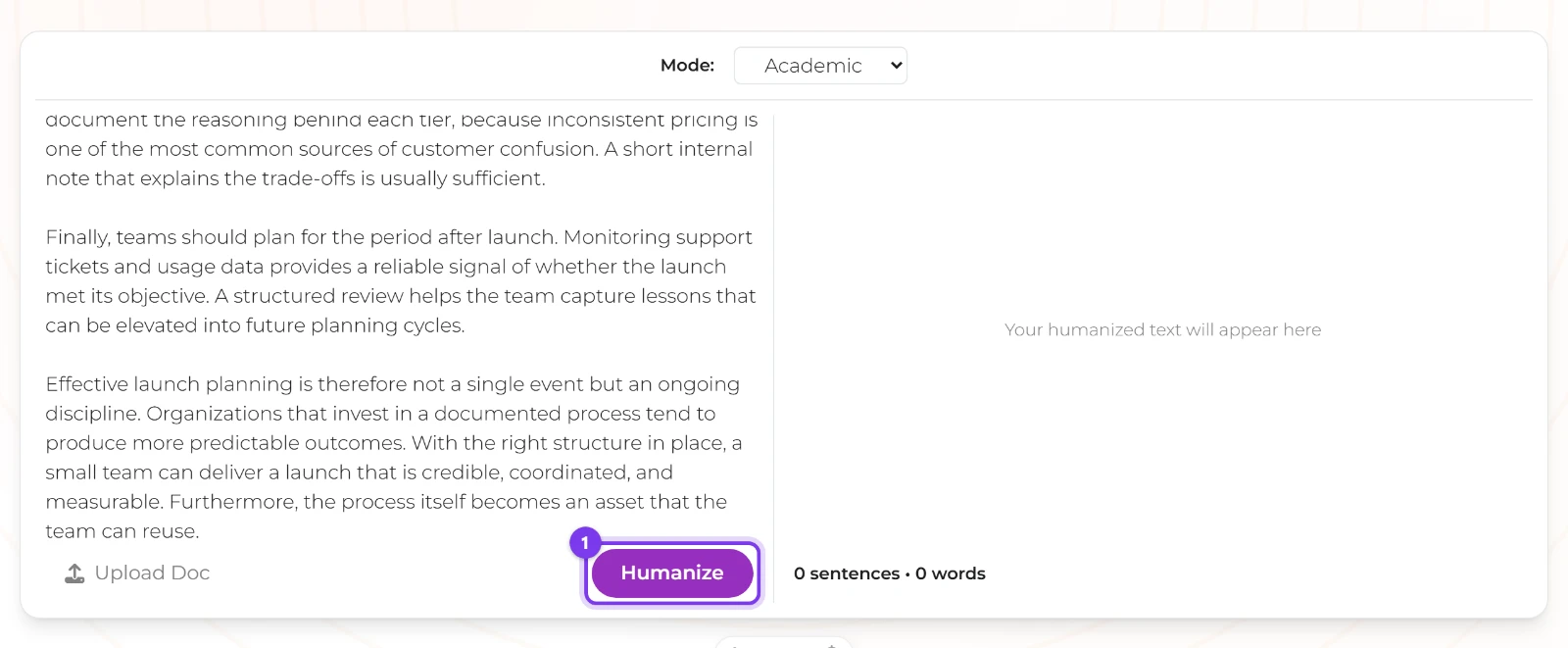
The draft in the left panel, with Humanize ready underneath it. Choose a mode from Mode:
Four options, no submenus: Academic, Simple, Formal and Informal, with Academic selected out of the box. Each one adds a single tone instruction to the rewrite and nothing else. For a blog section or a newsletter we'd switch to Simple; Formal suits a client email, Informal a post where you're talking to friends, Academic the essay you're handing in.

The Mode control above the panels, starting on Academic. Press Humanize and let it finish
The panel shows Humanizing... while it works, then the rewrite takes the place of Your humanized text will appear here. It's one pass with no second look at its own output, so what you get the first time is what you're editing.
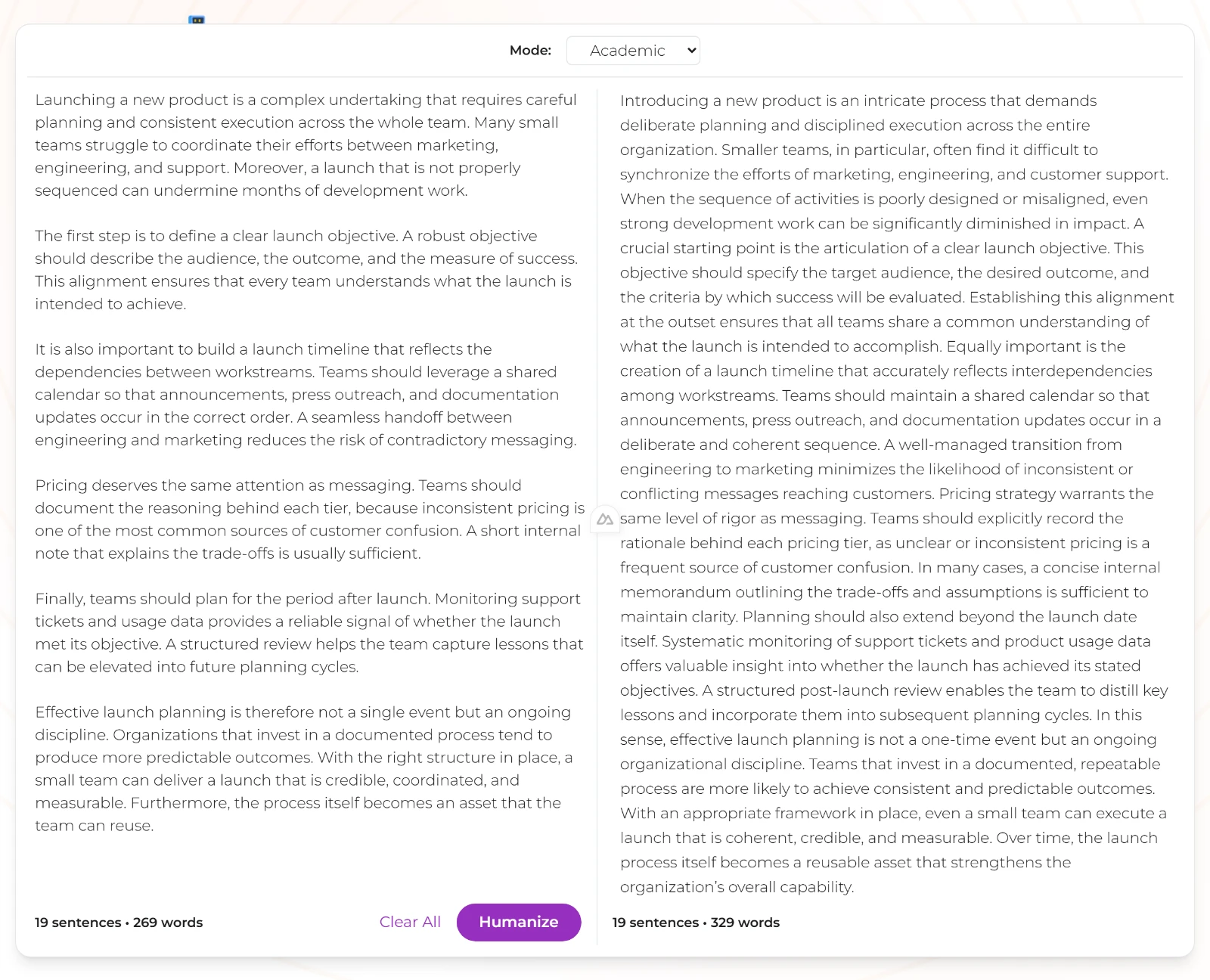
The rewrite on the right, the original still on the left. Read the counts, then start your own edit
A count sits under each panel, in sentences and words. It's your browser splitting on spaces and on
.,!and?, so treat it as a rough check on length rather than a verdict on quality. Copy the rewrite somewhere before you reach for Clear All, because you'll want the same text in the detector in a minute.
What actually changes in the output
The tool is told to keep your meaning and key information, vary sentence structure, add natural transitions and cut robotic repetition. Whether a given rewrite comes back with more varied sentences is the part you check yourself. Read the two panels side by side, because that's the only honest test of whether the rhythm improved on your draft.
What you should not expect is new information. The rewrite is only as specific as the draft it started from. If your paragraph never named a product, a price or a person, the humanized version won't either; it will say the same vague thing with better rhythm. That's why the next two sections exist.
What the humanizer cannot do: voice, one detail, an opinion
Three things stay on your side of the desk.
Voice. With no place to paste a sample of your writing, the tool has nothing to copy from. Grammarly's humanizer does offer a custom voice built from a writing sample; that's its feature and not this one's.
Concrete detail. As the Wandering Educators edit checklist puts it, "A humanizer cannot add your pear". It can rearrange what's already there; it can't know that your launch slipped a week because the pricing page wasn't ready.
Opinion. If your draft never took a side, the rewrite has nothing to carry, because it keeps the meaning it was given. A model can hold a position you hand it. It can't form one.
The 10-minute pass that adds what the tool can't
Do this straight after the rewrite, before you settle down to read the whole piece.
In each section, add one thing only you know: a date, a price, a name, a number from your own week.
Write one sentence you'd actually say out loud to a colleague, in your own words, and leave it in. That sentence is the voice.
State an opinion and the reason behind it. "We'd do this again" is fine if you'd say it.
Delete the weakest paragraph. Adding detail usually means something else has to go.
Most drafts gain more from step 1 than from any amount of rewriting. Two paragraphs with a real number in them read more human than ten smooth ones without. The same habit, generate then edit with your own eyes, is what AI Image Prompt Examples That Work (Tested in fusionchat.ai) does for pictures.
The signs to check afterwards: em dashes, delve, fence posts
Run this list over the finished piece. It takes two minutes and it catches what the rewrite left behind.
Em dashes. Nothing in the humanizer's instructions says to avoid them; the no-em-dash rule belongs to Sabrina Ramonov's prompt, which ends by telling the model to check. If you want that rule applied, apply it yourself.
delve and leverage. Both are on that prompt's ban list.
moreover, furthermore, leverage, utilize, elevate, seamless, unlock. The glue words from the Wandering Educators edit pass.
Fence posts. Sentences that all run 12 to 18 words, one after another.
Three-sentence paragraphs, repeated down the page.
No concrete detail. The one sign the tool can't fix for you.
If your writing is being flagged and you want the reason before you rewrite, Why Does My Writing Get Flagged as AI? A 6-Step Self-Check is the longer version of this list.
Does humanize AI work? What we could and could not measure
Yes on the surface, no on the substance. The rewrite is asked to keep your meaning, vary sentence structure, add natural transitions and take out robotic repetition. It has nothing to work with on voice, a concrete detail or a position, because you never gave it one, and those are the things a reader notices.
What most people mean by the question is whether the detector score moves, and that one is yours to measure. A score belongs to a text, a model and a day, so someone else's number says almost nothing about your draft.
So here is the pair we can show you: the same 260-word draft before anything touched it, and that draft after our own ten-minute edit pass from two sections up. First, the raw draft:
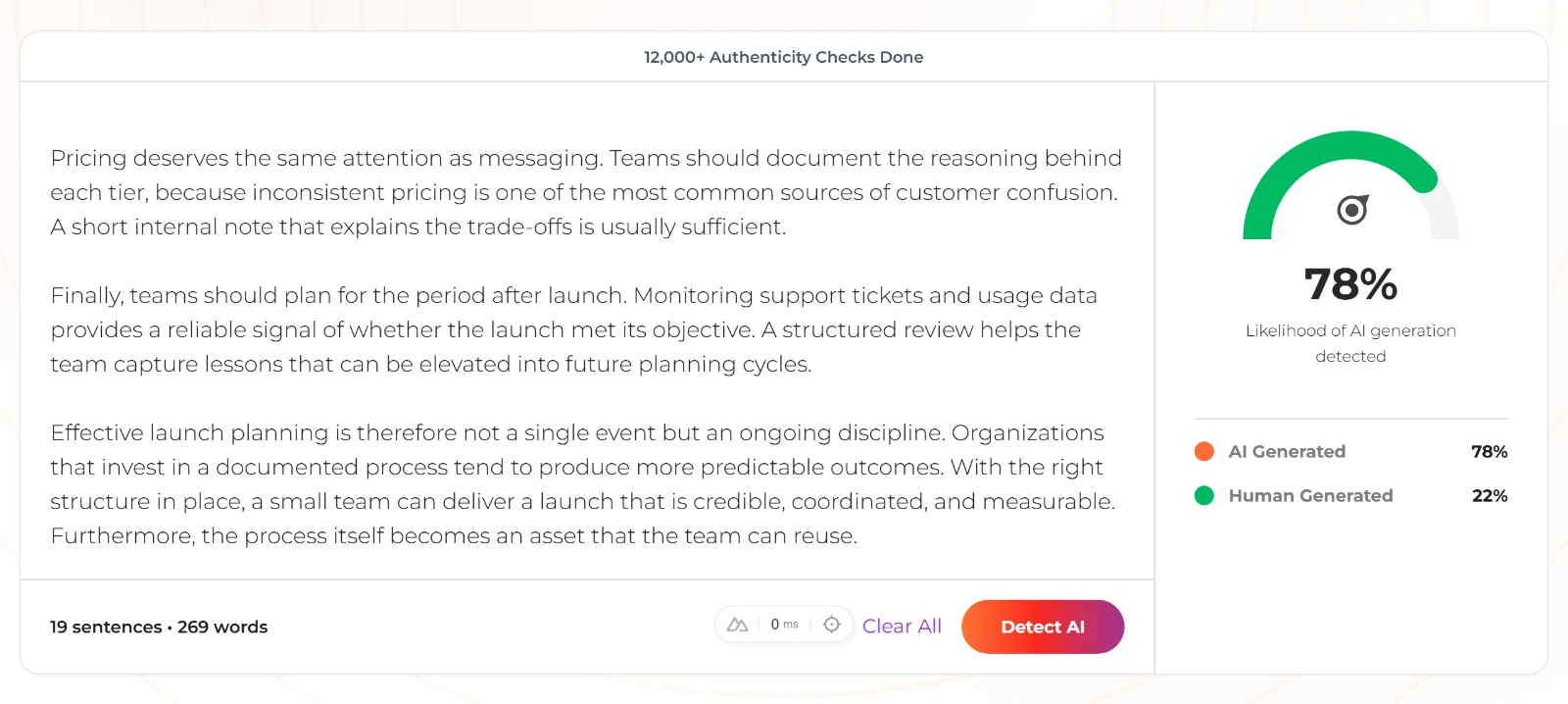
Then the same text once we'd done the edit pass on it:
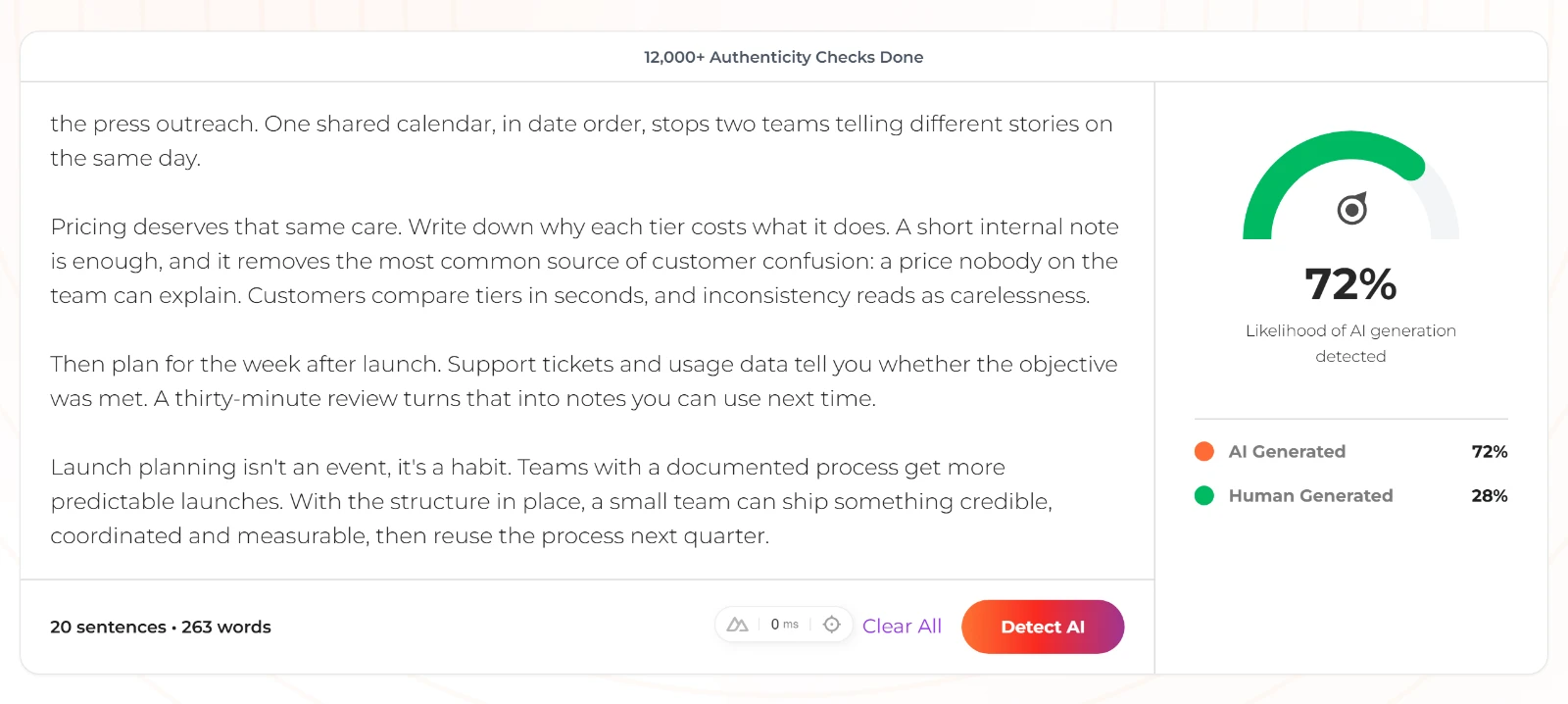
One thing that pair is not. The humanizer's own rewrite was not run through the detector for this post, so the second scan is a hand edit, not the tool's output.
The comparison that answers the question is the one on your draft. Run your text through the humanizer, paste the rewrite into the AI detector, and read the two sets of scores side by side. Stay above 250 words, because the detector's own page warns that short scans are noisy, and write the date beside each number.
Two things to hold on to while you read the scores. The detector is a language model being asked a question, not a separate instrument: it returns an AI score and a human score from 0 to 100, weighing repetition, unnatural phrasing, missing personal voice, over-formal structure and vague statements, and the model family that did the rewrite is also the one judging it. And two flat 50s can be a parse failure rather than a measurement.
So a moved score isn't proof the writing sounds human, and a score that stays put isn't proof it doesn't. "Detectors are unreliable in both directions" is the line from that edit guide, and one pair of scans is a data point, not a verdict.
How to make AI text sound human without losing your voice
The common mistake is rewriting the whole thing again after the humanizer, which throws away the one useful thing it did and costs you another hour. The cheaper move: keep the rewrite, then take back the sentences that matter.
Because there's no field to learn from your own writing, your voice has to return in the edit. Three ways we'd do it: rewrite the first sentence of every section in your own words, read the piece aloud and fix the spot where you stumble, and keep the paragraphs where you know more than the model did. If you want the paste-and-publish walkthrough on its own, How to Humanize AI Text (Without Rewriting It Yourself) covers that half.
On that last point: the humanized paragraph is a fair start and a poor finish. The edit guides that dismiss the whole category are right that the tool can't add your pear, and they still allow it as a quick de-stiffening first pass. That's the same position this post takes, with the steps in between.
Free limits and when credits matter
Signed out, you get a daily budget of 10,000 tokens per tool per IP address, reset every 86,400 seconds. Spend it and the panel tells you Daily limit reached. Sign up for more access.. No source converts those tokens to words or pages, and we won't invent a figure, so watch the counter instead of planning in pages.
Signed in, the metering changes to credits: 256 tokens per credit, charged only after a call goes through. Run out and you get Insufficient credits. Please purchase more credits to continue..
Credits matter once humanizing stops being occasional. A daily post, or a long document you'd otherwise edit by hand, will empty a per-IP budget quickly; one paragraph a week won't.
What to try next
Take the last thing you published that read like a machine, paste it in, and time the ten-minute pass that follows. That's the whole method, and the second half is what decides whether the piece sounds like you. Once you've done it a few times you'll hear the fence posts in your own drafts before you paste anything. There are more walkthroughs like this in more AI humanizer guides.
Frequently asked questions
Does humanize AI work?
Does a humanizer remove em dashes?
Can I paste my own writing so it copies my voice?
How much can I humanize for free?
Related guides

First published · Last updated : First published.