How to Humanize AI Text With Fusion Chat's AI Humanizer

To humanize AI text in fusionchat.ai, paste your draft into the AI Humanizer, pick one of four modes and click Humanize; the rewrite lands in the right-hand panel. Academic is the mode the page loads with. One run carries up to 50,000 characters, and anonymous visitors work against a token allowance that ends in a login prompt.
What the fusionchat.ai AI Humanizer actually does
The AI Humanizer is a free tool at /tools/ai-humanizer that rewrites text in four modes — Academic, Simple, Formal, Informal — with Academic selected by default. The page heading reads "Give AI Text a Human Touch". Behind the button, the model is told to keep your original meaning, vary sentence structure, add natural transitions and return the rewrite with no preamble. That last instruction is the practical one: you get text to paste onward, not a note about what changed.
So how to humanize AI content without rewriting it line by line? One paste, one mode, one click, then a read-through. What the page does not promise is a detector pass — its own FAQ says: "While no tool is 100% foolproof, our humanizer significantly improves the "human-likeness" score, helping you avoid blunt AI detection flags in SEO content."
Step 1: paste the AI text, or upload a .txt file
Open the tool
Go to the AI Humanizer tool page. The empty input box carries the placeholder "Enter or paste your text and click 'Humanize'".
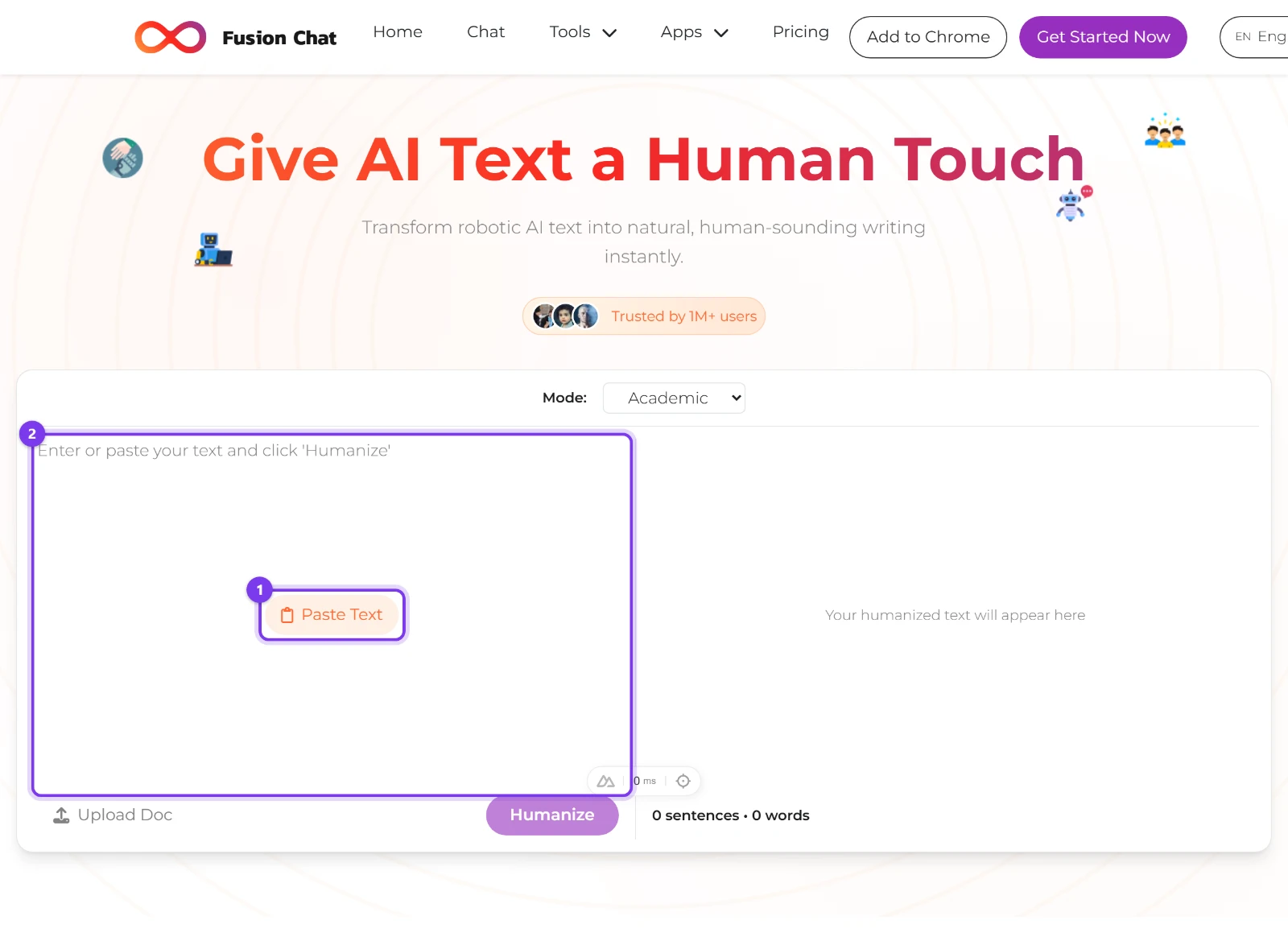
The empty AI Humanizer: Mode reads Academic and the input box offers Paste Text. Add your draft
Click the orange Paste Text pill in the middle of the box to fill it from your clipboard, or click into the box and type. The pill only shows while the box is empty, so it disappears once there is text in it.
Or load a plain-text file
Click Upload Doc under the input panel. The picker accepts .txt, .doc, .docx and .pdf, but only plain text is read; any other format raises the alert "Currently only .txt files are supported. PDF and DOC support coming soon!".
Step 2: pick one of four modes (Academic, Simple, Formal, Informal)
Choose a mode
Open the Mode: select above the two panels and pick Academic, Simple, Formal or Informal. Academic is pre-selected, so change it now if you want a different tone. Each mode only changes the styling line the model is given, so switching keeps the meaning and changes the delivery.
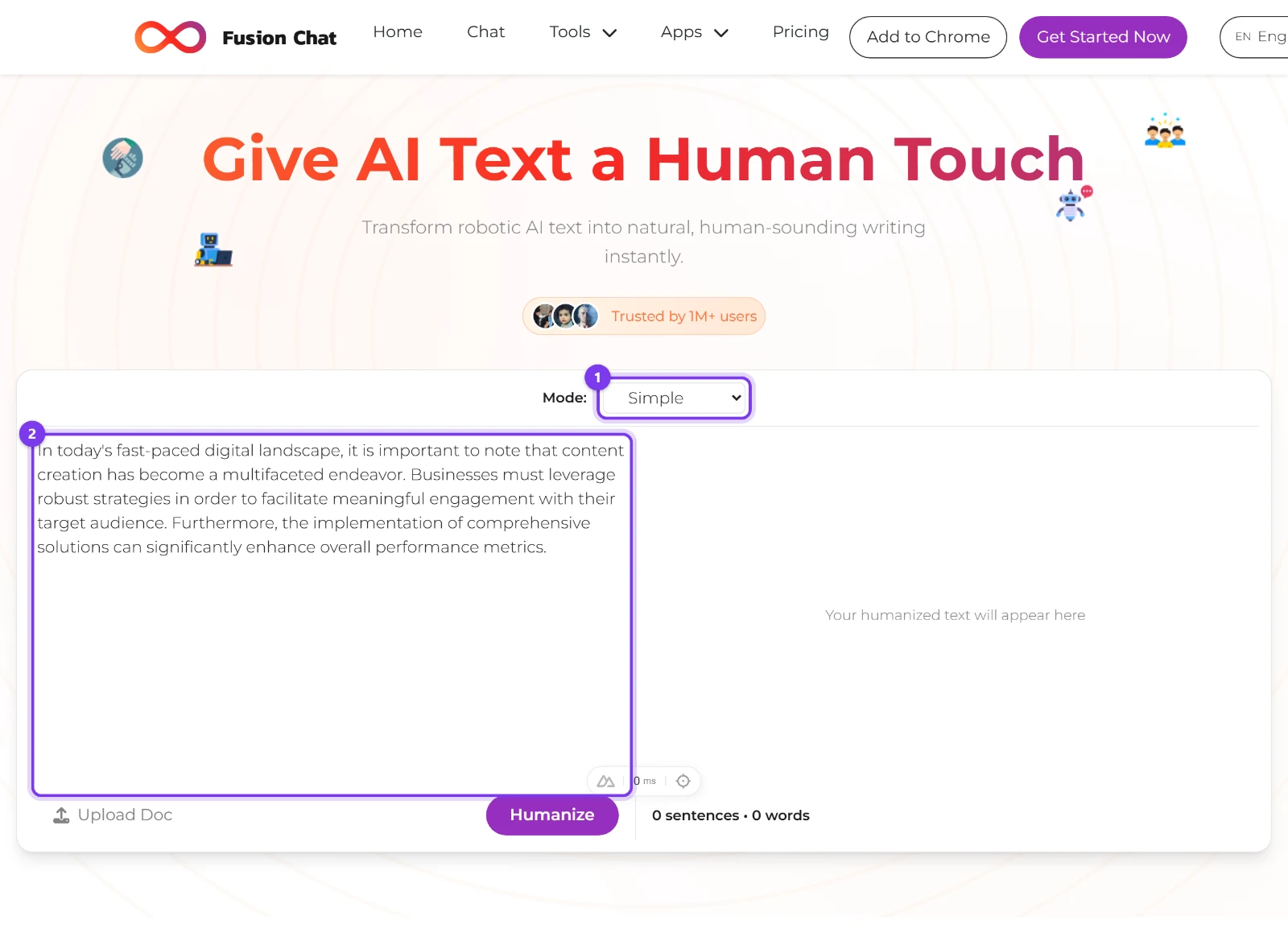
Text in the box, and the Mode row switched from Academic to Simple.
Step 3: click Humanize and read the right-hand panel
Click Humanize
Click the purple Humanize button under the input panel. It stays disabled until the box holds non-whitespace text, and while the run is in flight the right-hand panel shows a spinner and the word Humanizing....
Read the rewrite, then keep or clear it
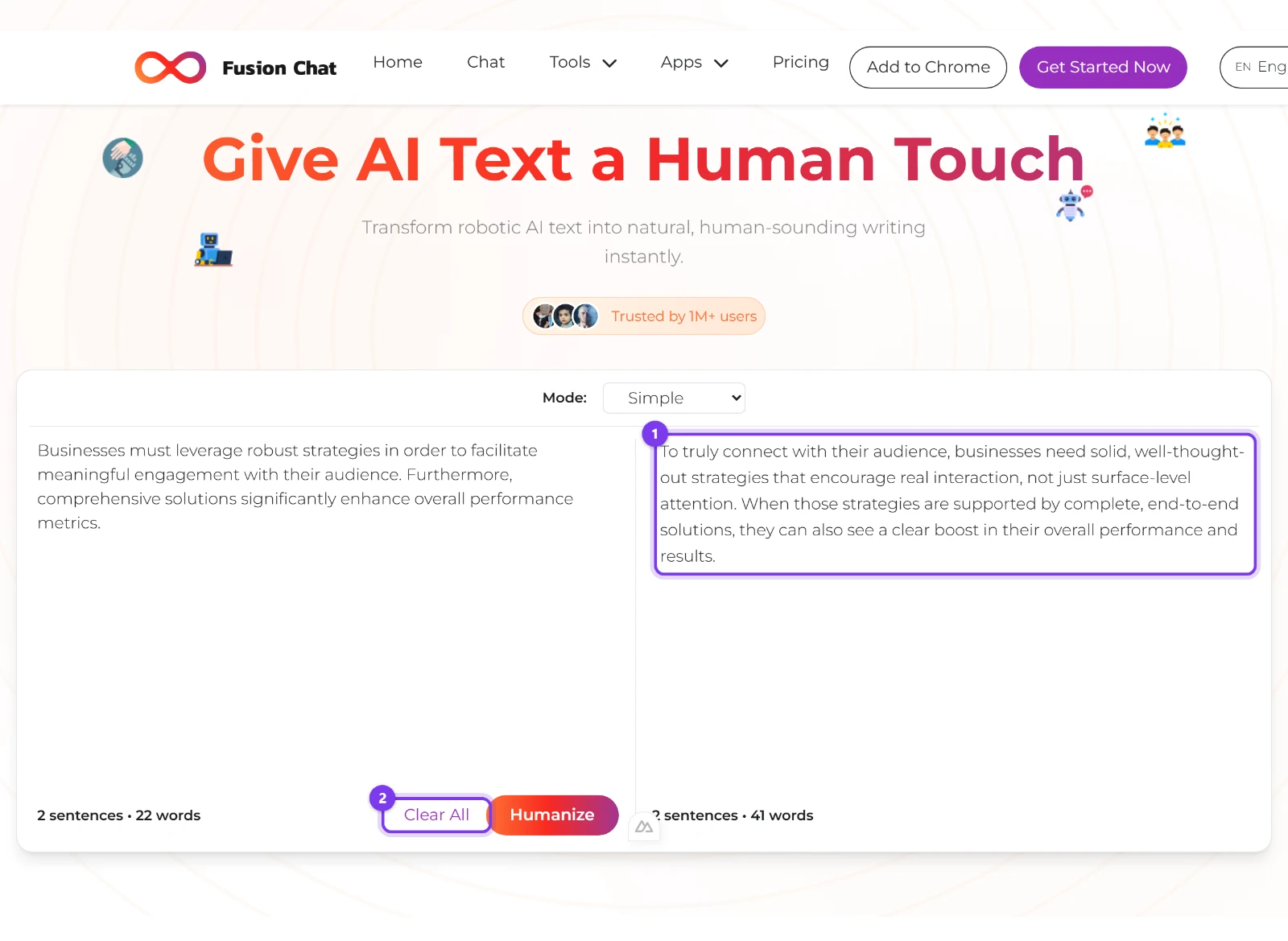
The right-hand panel now holds your rewritten text. Both panels print a count in the form "{sentences} sentences • {words} words", so you can compare the length of draft and rewrite at a glance. Clear All replaces Upload Doc once there is output, and it empties both panels for the next run.
How much text fits in one run, and what "free" means here
Two separate limits apply. A single request carries at most 50,000 characters and at least 10. Free anonymous use is metered per IP address by a token counter with a 10,000-token ceiling per tool, and that counter expires 24 hours after the last run — a rolling window rather than a fixed daily reset.
When the counter is spent, a popup titled You've reached your free limit opens with Login and Sign up buttons. Signing in moves you onto credits: each account has a 50-credit allowance that a cron refills every month.
So the honest answer to "humanize ai text free" is that free use exists, it is capped, and the cap is counted in tokens rather than words or runs. The counts the panels print are the length of your text, not a tally of what is left of the allowance.
How to check the rewrite still says what you meant
The model is instructed to preserve your original meaning and change only the delivery, and the tool's FAQ makes the same promise for keywords: "Yes. Semantic integrity is our priority. We polish the delivery while ensuring your core message and essential SEO keywords remain intact." An instruction in a prompt is not a proof, so the check stays yours.
Knowing how to humanize AI text is mostly knowing what to re-read. Put the two panels side by side and look for names, numbers, dates and quotes that must stay exact; your main keyword, still in place rather than spread thin; and sentences that all open the same way — if the rewrite still marches in step, try another mode and run it again. Nothing here proves a detector will pass the rewrite, and the tool does not claim that either.
Every humanizer walkthrough the blog publishes is collected in AI Humanizer guides and how-tos.
Frequently asked questions
What does an AI humanizer do?
Does the AI Humanizer work?
How much text can I humanize at once?
Is the AI Humanizer free?
Which mode should I choose?
First published · Last updated : First published.