AI Image Prompt Examples That Work (Tested in fusionchat.ai)
You typed "woman working at a laptop", waited, and got a stock-photo smile in a grey office. So you added words: professional, high quality, 4k. The next one came back just as bland. Nothing you typed was wrong, but none of it told the generator what to draw.
Short version: most AI image prompt examples are keyword lists, and a picture needs a sentence. Name six things — what the subject is doing, where it is, what medium the picture is, where the light comes from, how it's framed, and the shape of the frame — then change one at a time until the result looks like the picture you had in mind.
Every image below was made in the fusionchat.ai generator for this post, and each one is shown with the prompt that made it and the date, so you can check the words against the picture. If you need a header, a product shot or a poster this afternoon and don't want to learn a prompt syntax to get it, this is the whole method.
What makes an AI image prompt work
Six slots make a prompt that renders what you meant:
Subject and action: who or what, and what it is doing. "A grey tabby cat asleep" gives the generator a scene; "a cat" gives it a category.
Setting: where the subject is. "On a scrubbed oak kitchen table" rules out every other table in the world.
Medium: photo, flat vector illustration, oil painting, 3D render, 1970s travel print. This one word rewrites the surface of the whole picture.
Light: where it comes from, how hard it is, what colour it is. "Late afternoon sun through a side window" is a light; "good lighting" is a wish.
Composition: where the subject sits, how tight the crop is, what lens it would be shot on, how much space stays empty. This is the slot people skip and then can't fit a headline into.
Frame: the shape of the picture.
Two of the six are controls rather than words. The whole form is one prompt box and an Image Orientation row of Square, Portrait and Landscape, rendering at 1:1, 4:5 and 16:9. There's no style picker, no negative-prompt field and no weight syntax, so the medium and the light are yours to write into the sentence.
Write the brief before the prompt. When the picture has to sum up an article, the six slots come straight out of the article's key points, and How to Write a Summary With an AI First Draft gets you that list in a minute.
How to write an AI image prompt in fusionchat.ai
The form takes one sentence and one orientation, so build the sentence in the order above. Our worked example is a blog header for a post about deep work: a desk in morning light, with the left side free for the title.
Choose the frame before you write
Square is already selected, and Portrait and Landscape are the other two. Decide first, because how much empty space you can leave for a headline depends on the shape you're filling. A 16:9 header has room beside the subject; a square social image usually doesn't.
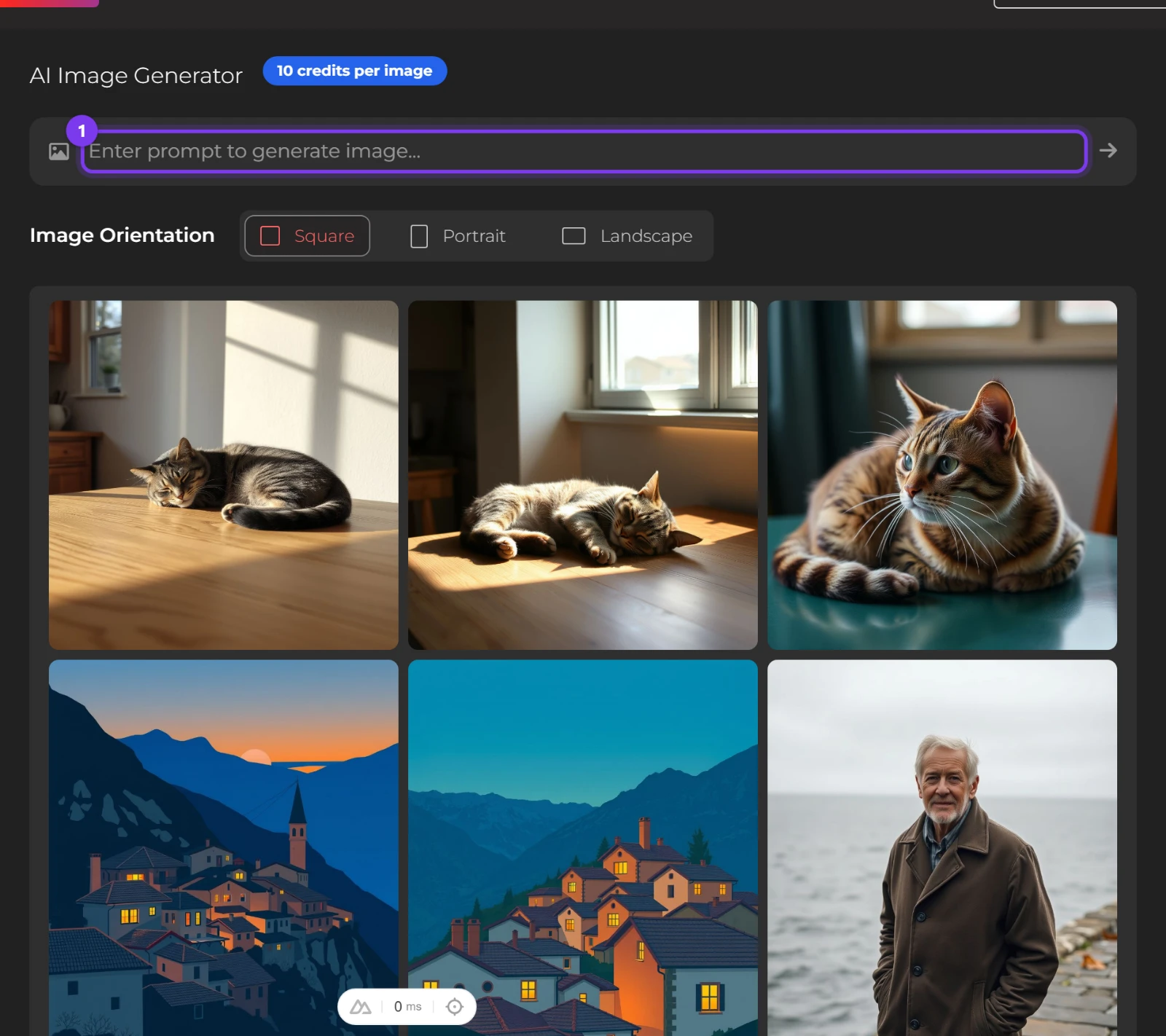
One prompt box and three orientation buttons: that is the whole form. Put the subject in motion
Type into the box with the placeholder Enter prompt to generate image... Open with a noun and a verb instead of a mood: "a cluttered wooden desk" rather than "an inspiring workspace". A subject doing something gives the generator something to arrange, and a noun alone gives it a category.
Say where it is, then where the light comes from
Add the setting, then name the light with a source, a direction and an hour: "morning sun through slatted blinds". This is the step that makes a picture read as a photograph instead of a render, and it's the one people skip, because they assume the tool will pick a sensible light. It won't. Unsaid, it guesses.
Name the medium, the lens and the empty space
Call the medium once, put a focal length on it, and say which side stays empty. If a headline, a logo or a price will sit beside the picture, write that down: "empty wall space on the left for a headline". Skip it and you get a lovely photo you can't put type on.
Check the length before you run it
A prompt over 500 characters never leaves the browser: the box shows Generation prompt is too long and no request is made, so finding out costs you nothing. If you're over, cut adjectives rather than nouns, because the nouns are what the picture is made of.
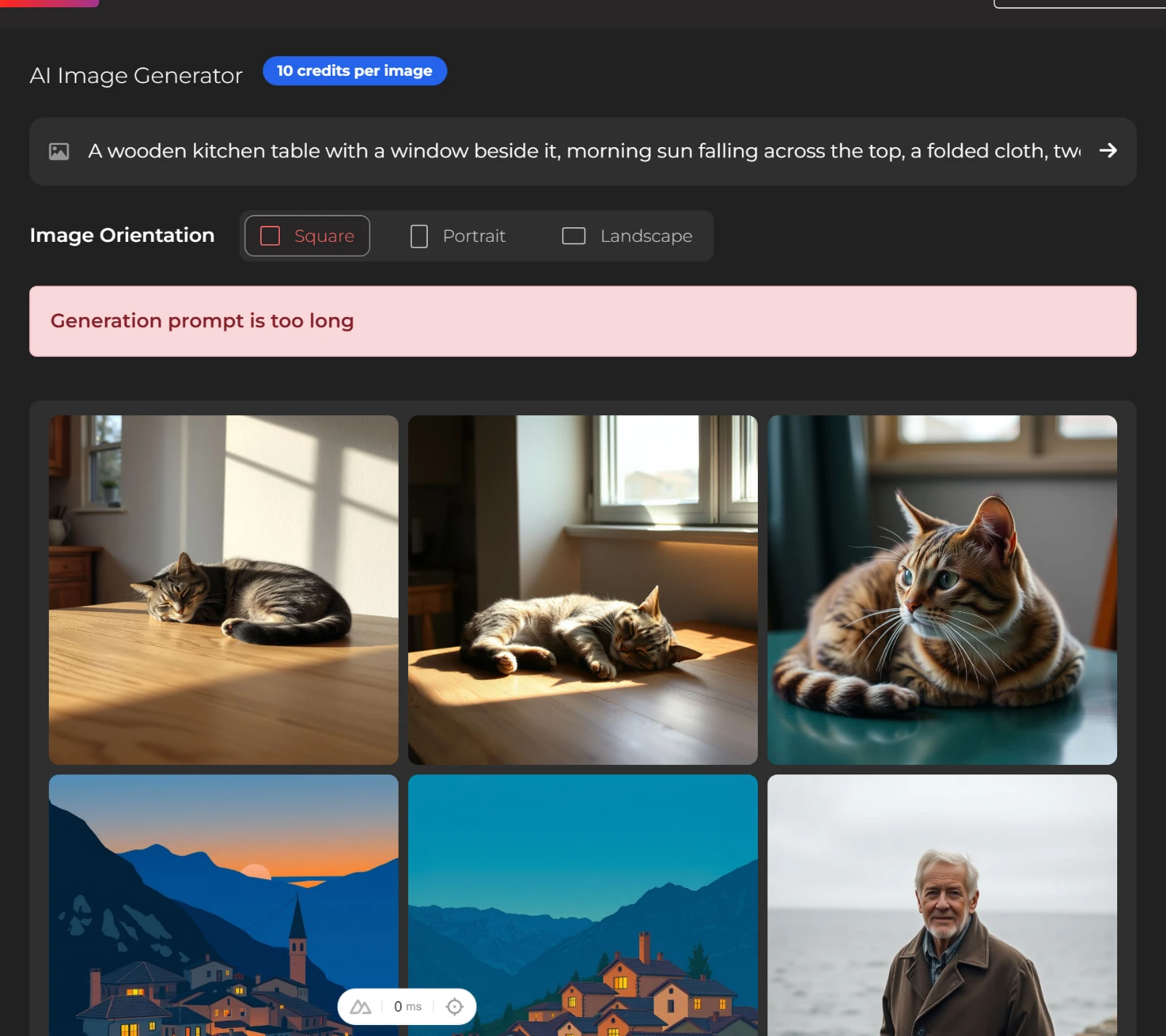
A prompt over 500 characters never leaves the browser, so it costs nothing to find out. Run it, then change one word
Press Enter and one image comes back. Change a single word and run it again. Change two at once and you'll have no idea which one moved the picture.
AI image prompt examples for five common jobs
These are the five pictures a site needs most often, each printed as the exact prompt plus the swap that changes it. The tool page carries examples too, but they're quoted captions printed over pictures that ship with the site, not the words that produced them: pleasant to look at, not much to copy.
A blog header prompt with space for a headline
Wide blog header photo of a cluttered wooden desk beside a window, open laptop, half-full coffee cup, stack of notebooks, morning light through slatted blinds, shallow depth of field, muted warm colours, empty wall space on the left for a headline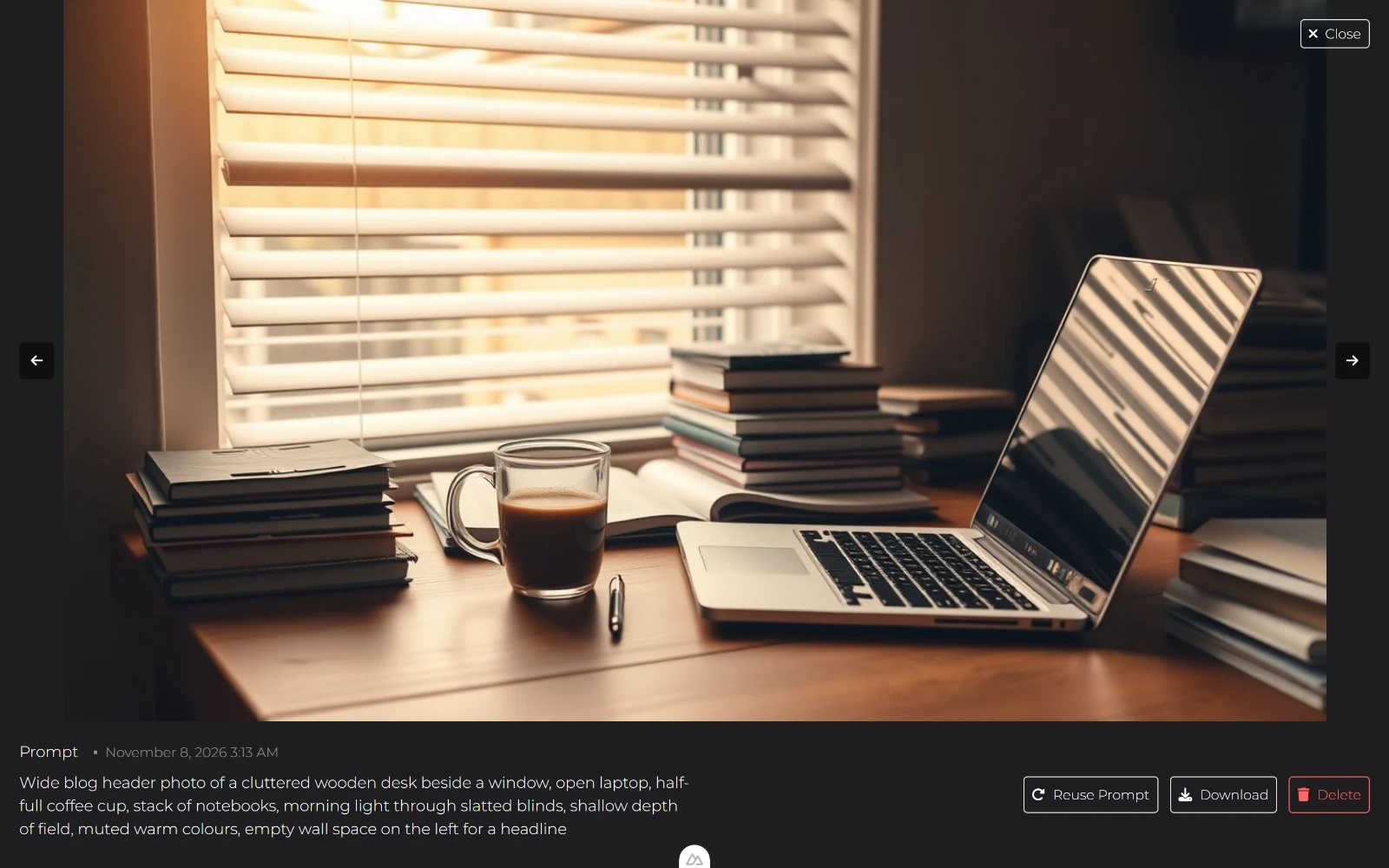
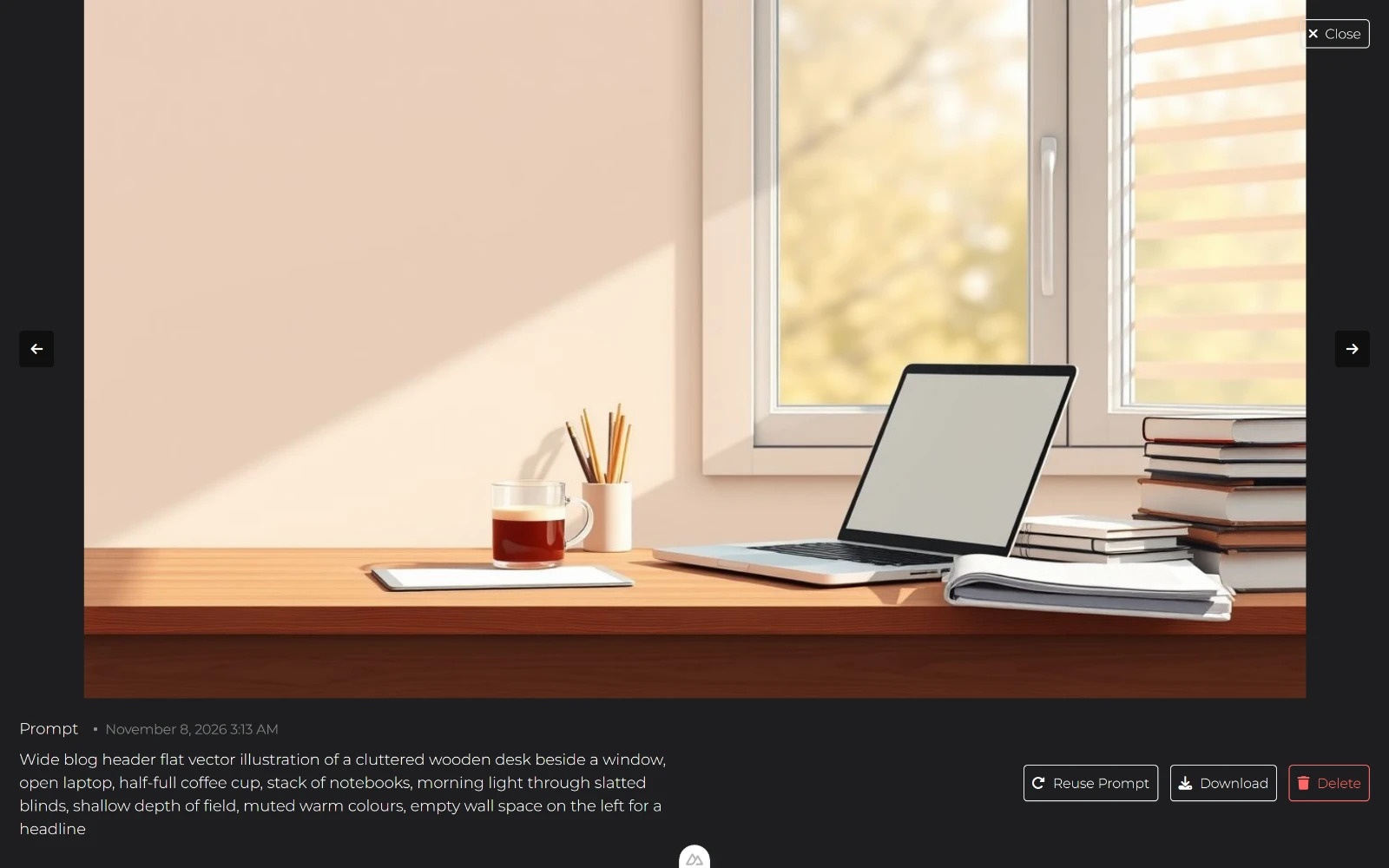
All six slots are in that sentence, and the last clause is the one that earns its place. To restyle it, change photo to flat vector illustration and leave everything else alone: the desk, the light and the crop stay put, and only the medium moves.
The words that go in that gap are a different job, and if yours are AI-written, How to Humanize AI Text With fusionchat.ai's AI Humanizer is the guide.
A square social post prompt
Square social post image of a ceramic mug of black coffee on a saucer, overhead view, dark walnut table, one folded linen napkin, golden hour light from the left, hard shadows, warm tones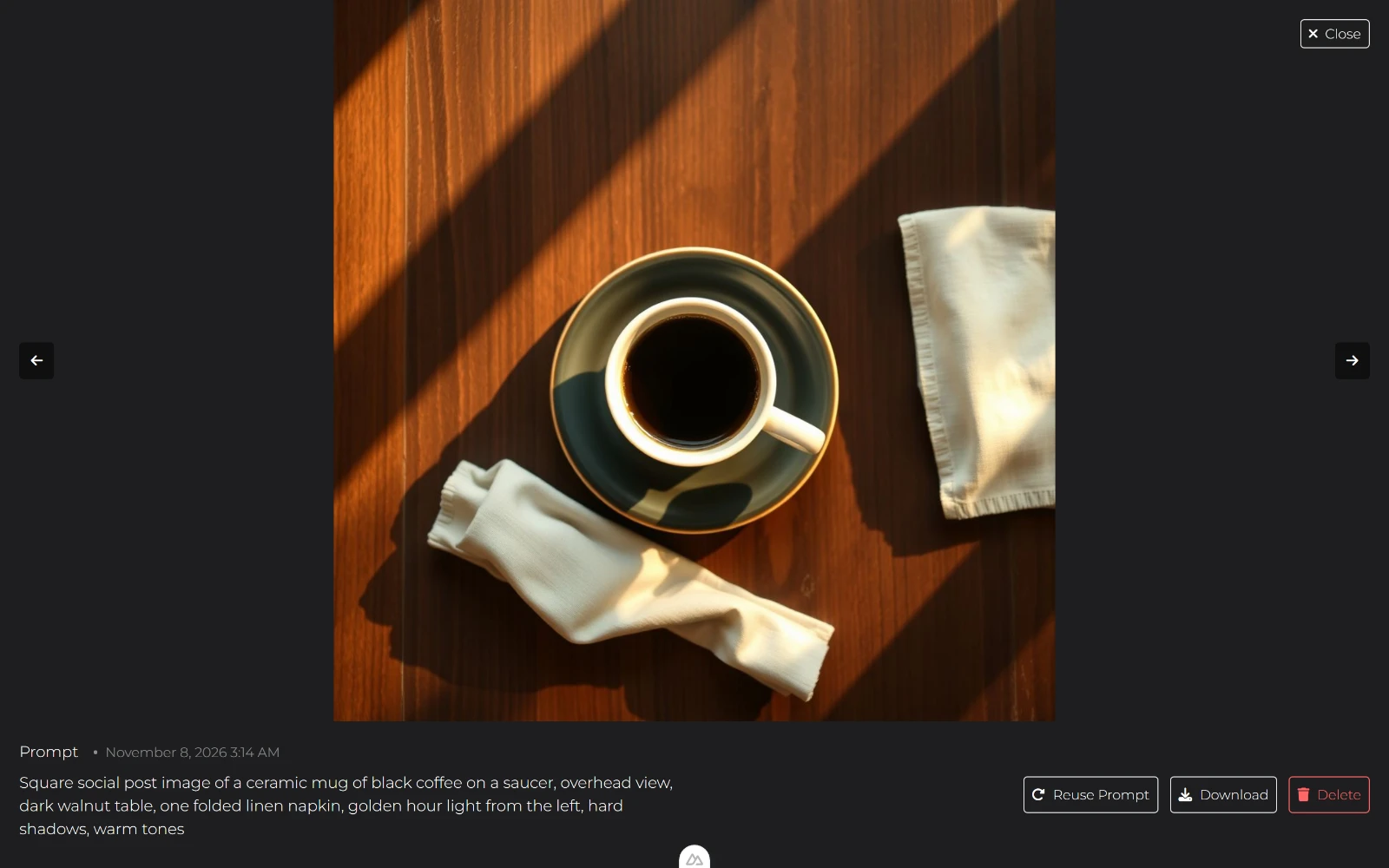
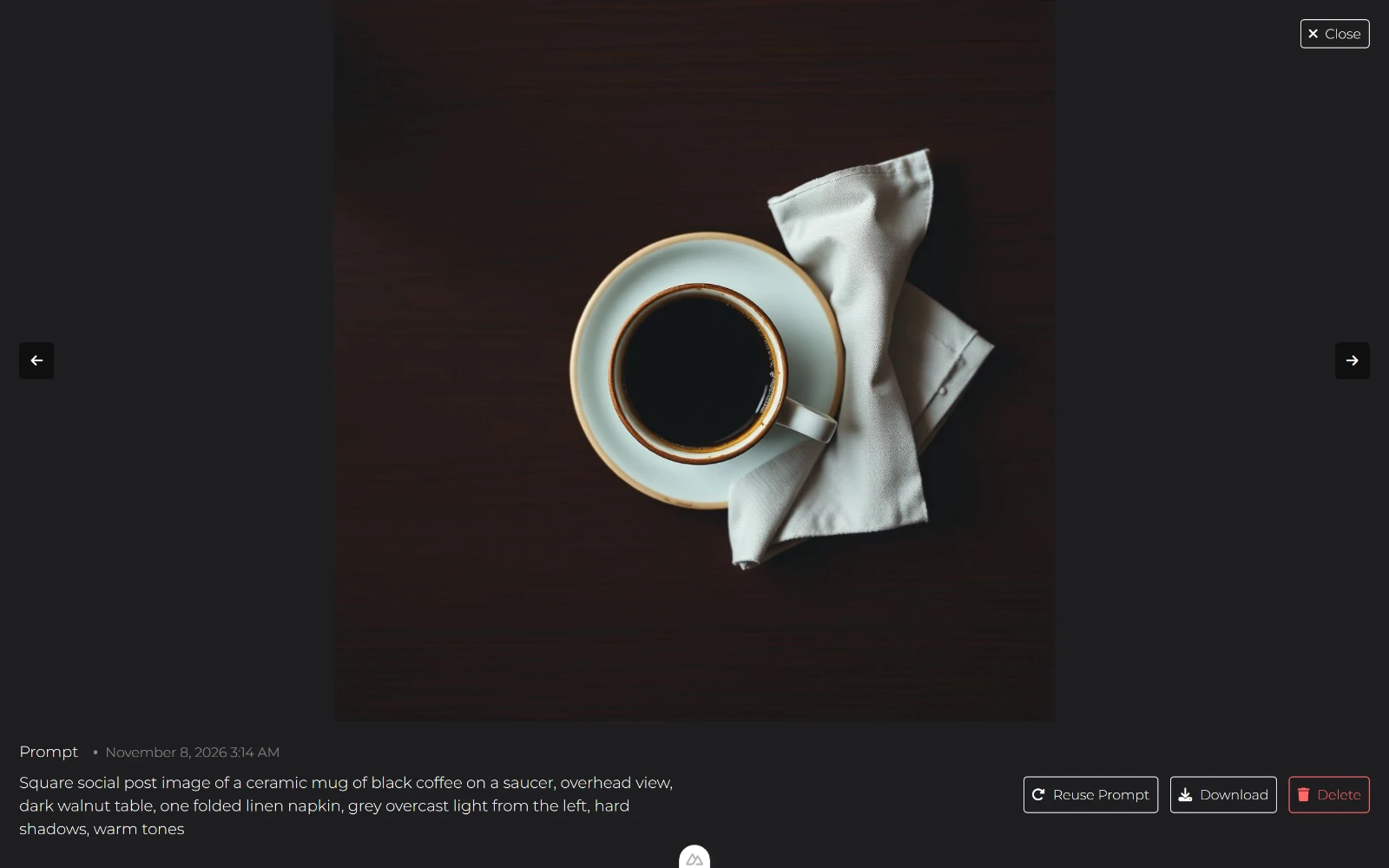
Change golden hour light to grey overcast light for the same mug, the same table and the same overhead view in a different mood. After the subject, light is the slot that changes a picture most.
An AI photo prompt for a product shot
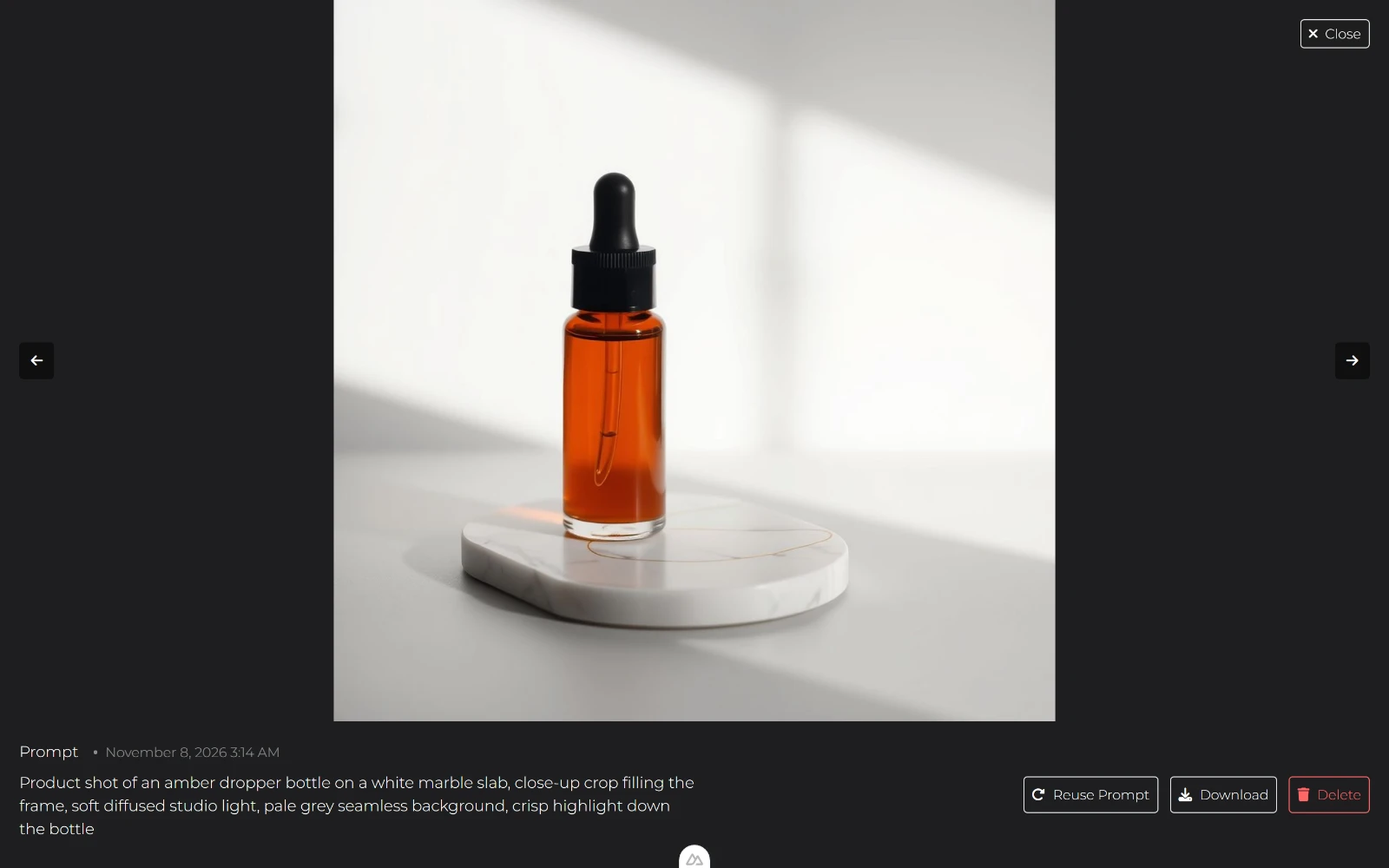
Product shot of an amber dropper bottle on a white marble slab, centred with plenty of empty space around it, soft diffused studio light, pale grey seamless background, crisp highlight down the bottle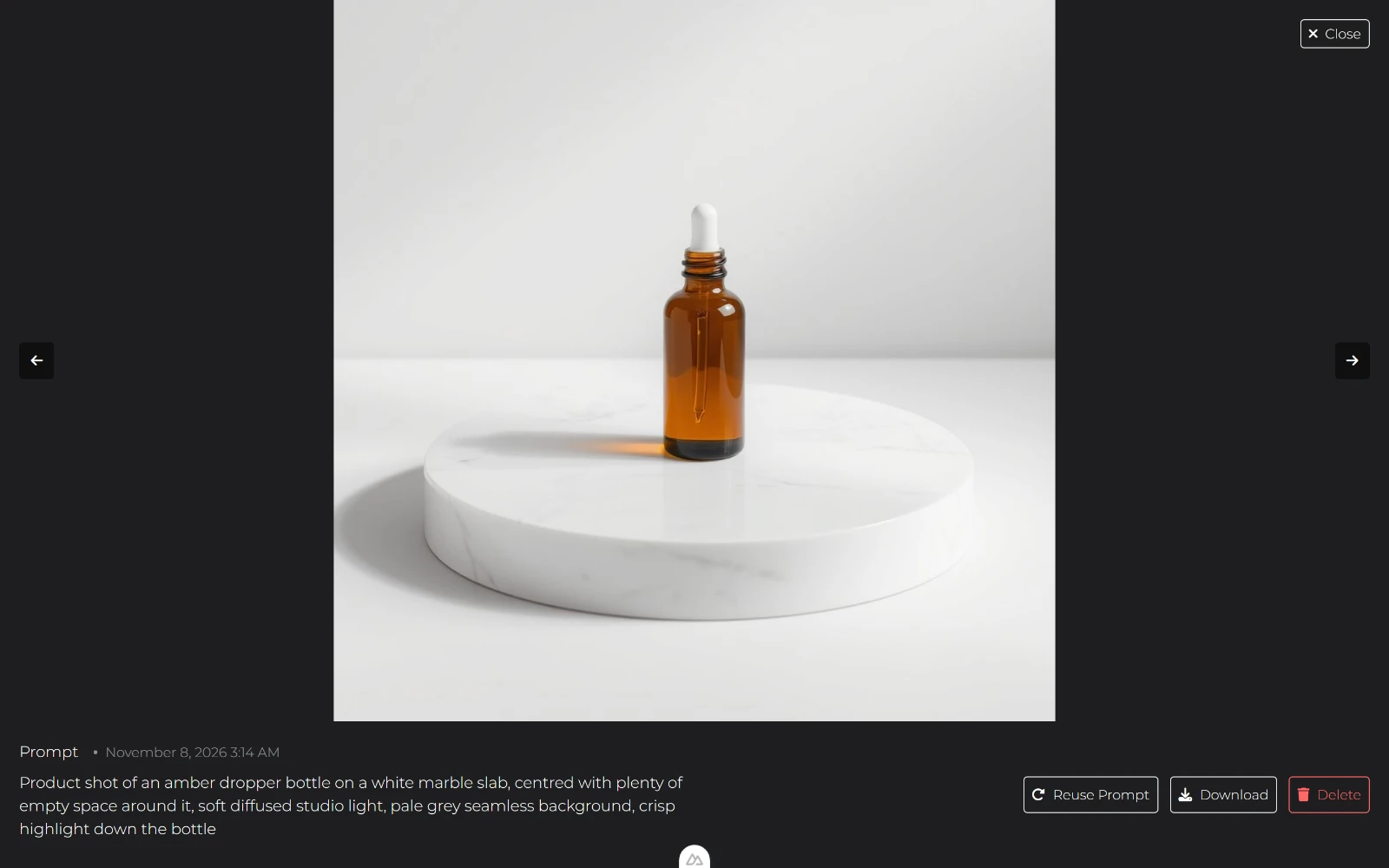
Change centred with plenty of empty space around it to close-up crop filling the frame when the image runs full width and the margin is wasted. The bottle and the studio light stay in the sentence, so the margin is the only thing you asked to be different.
A character prompt
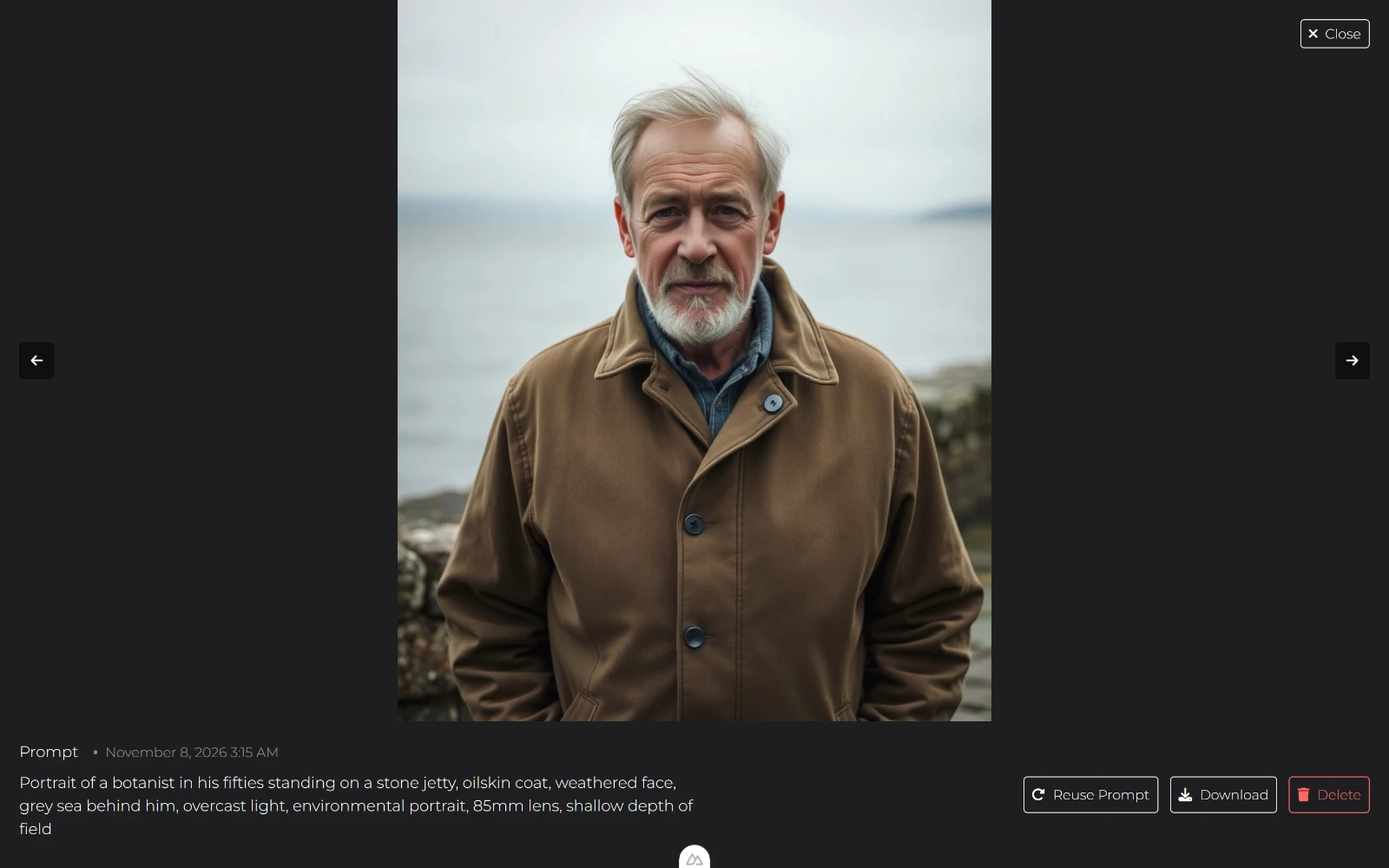
Portrait of a lighthouse keeper in his fifties standing on a stone jetty, oilskin coat, weathered face, grey sea behind him, overcast light, environmental portrait, 85mm lens, shallow depth of field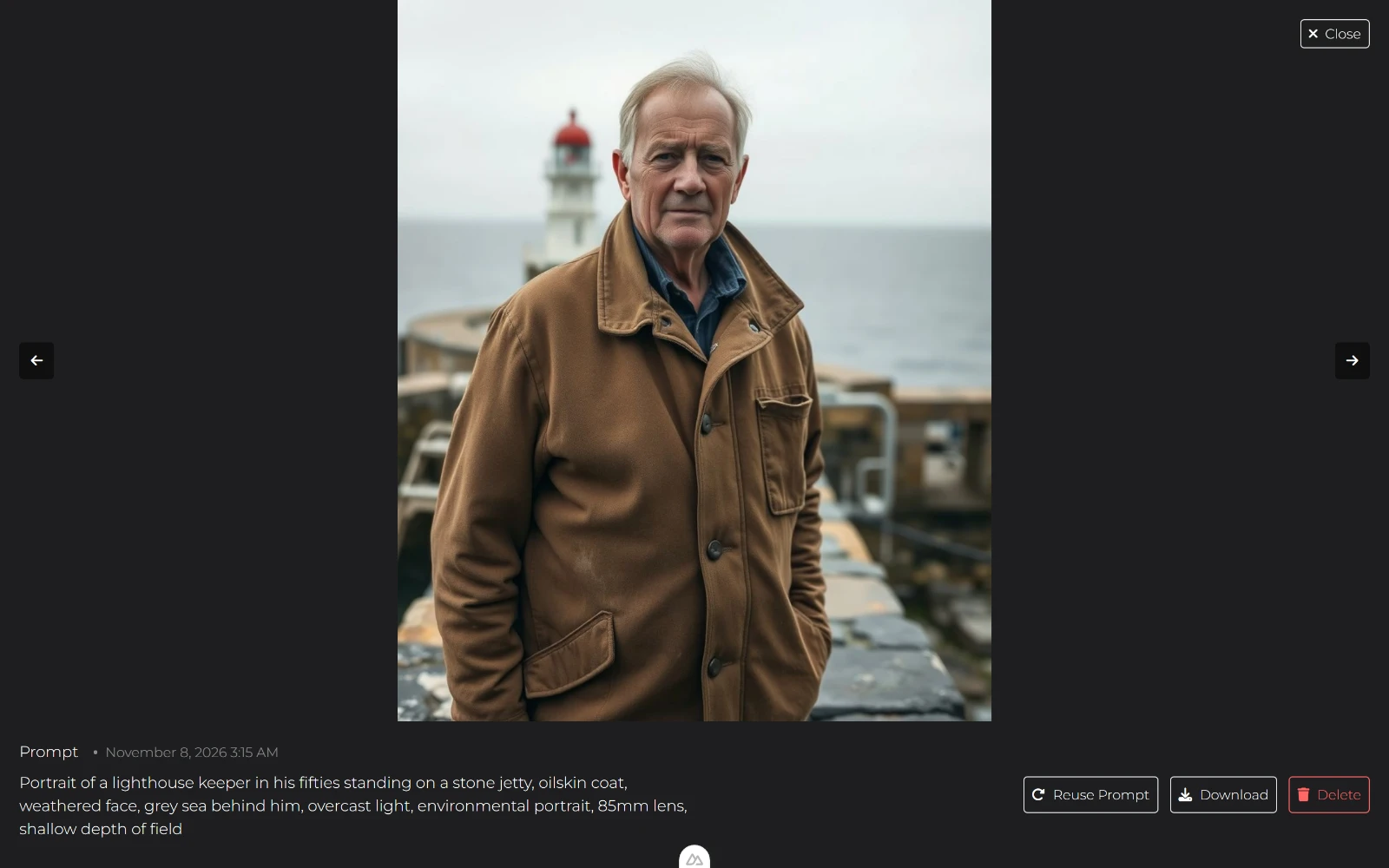
Change a lighthouse keeper to a botanist: the light, the lens and the framing are still in the sentence, so the person is the only thing that moved.
A poster prompt with room for type
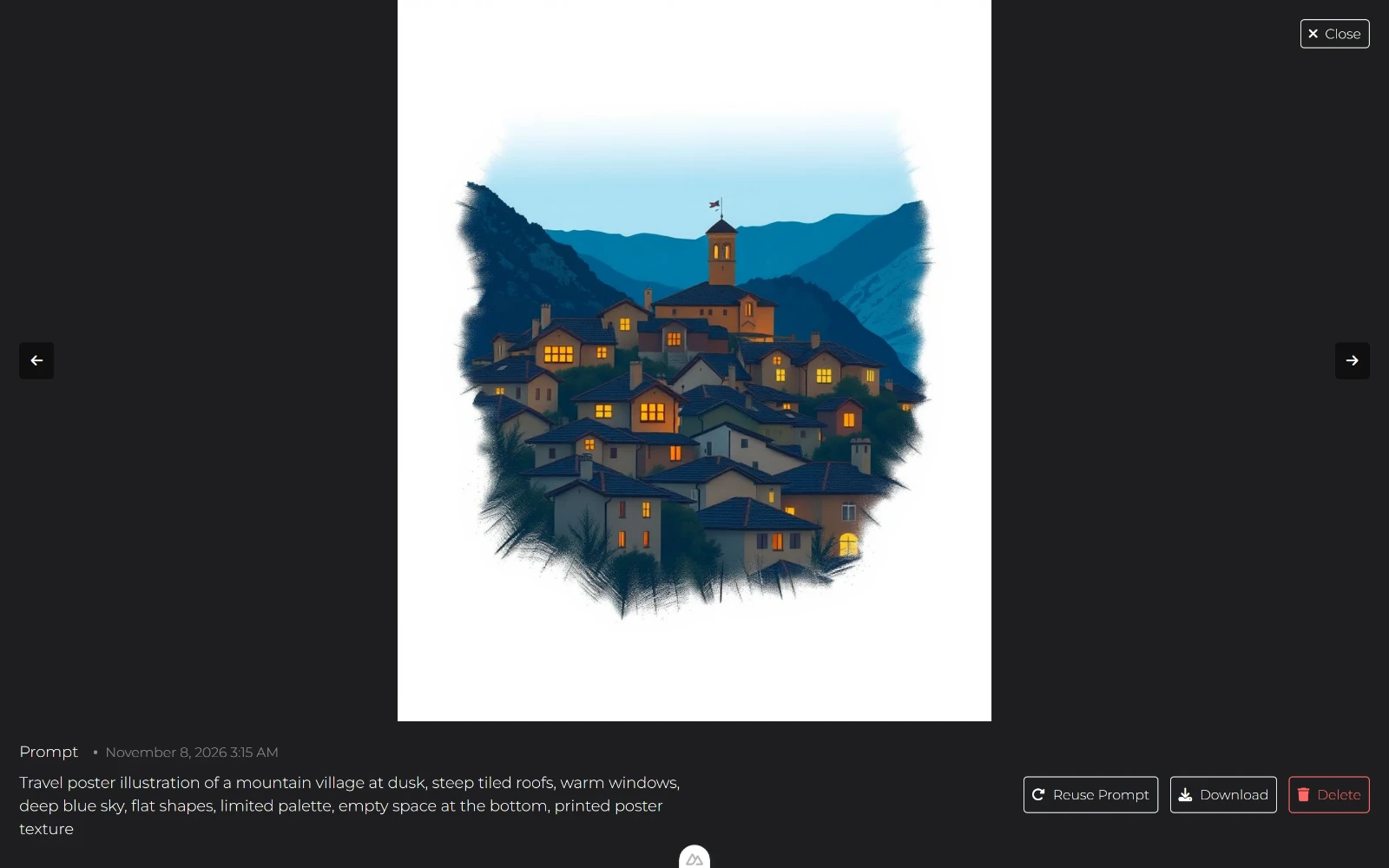
Travel poster illustration of a mountain village at dusk, steep tiled roofs, warm windows, deep blue sky, flat shapes, limited palette, empty space at the top, printed poster texture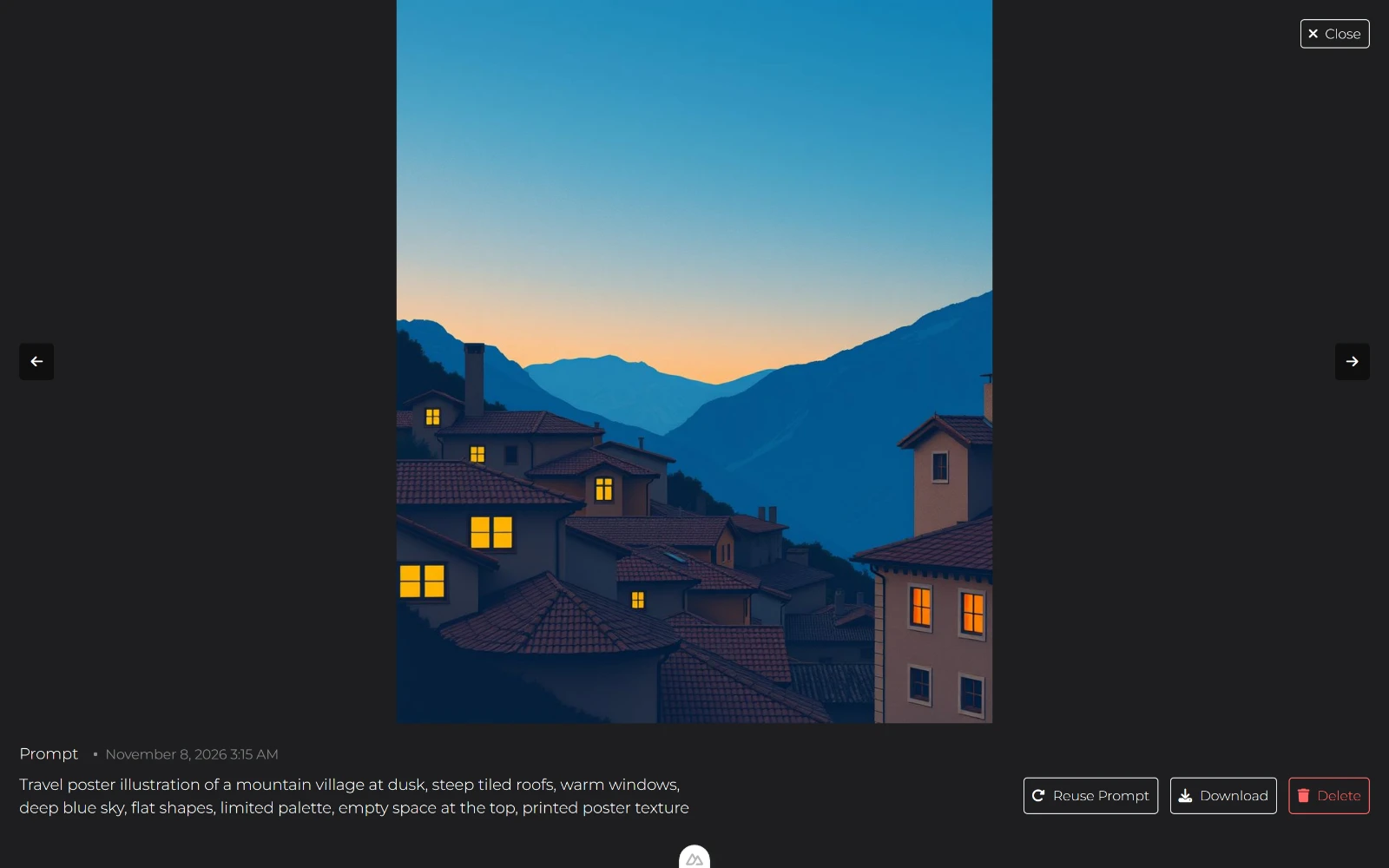
Change empty space at the top to empty space at the bottom when the poster hangs under a title rather than over it. The layout is the only slot that changed.
Why your prompt came back generic, and how to fix the one you already wrote
A generic result is almost always a prompt that named a category instead of a scene:
a cat on a table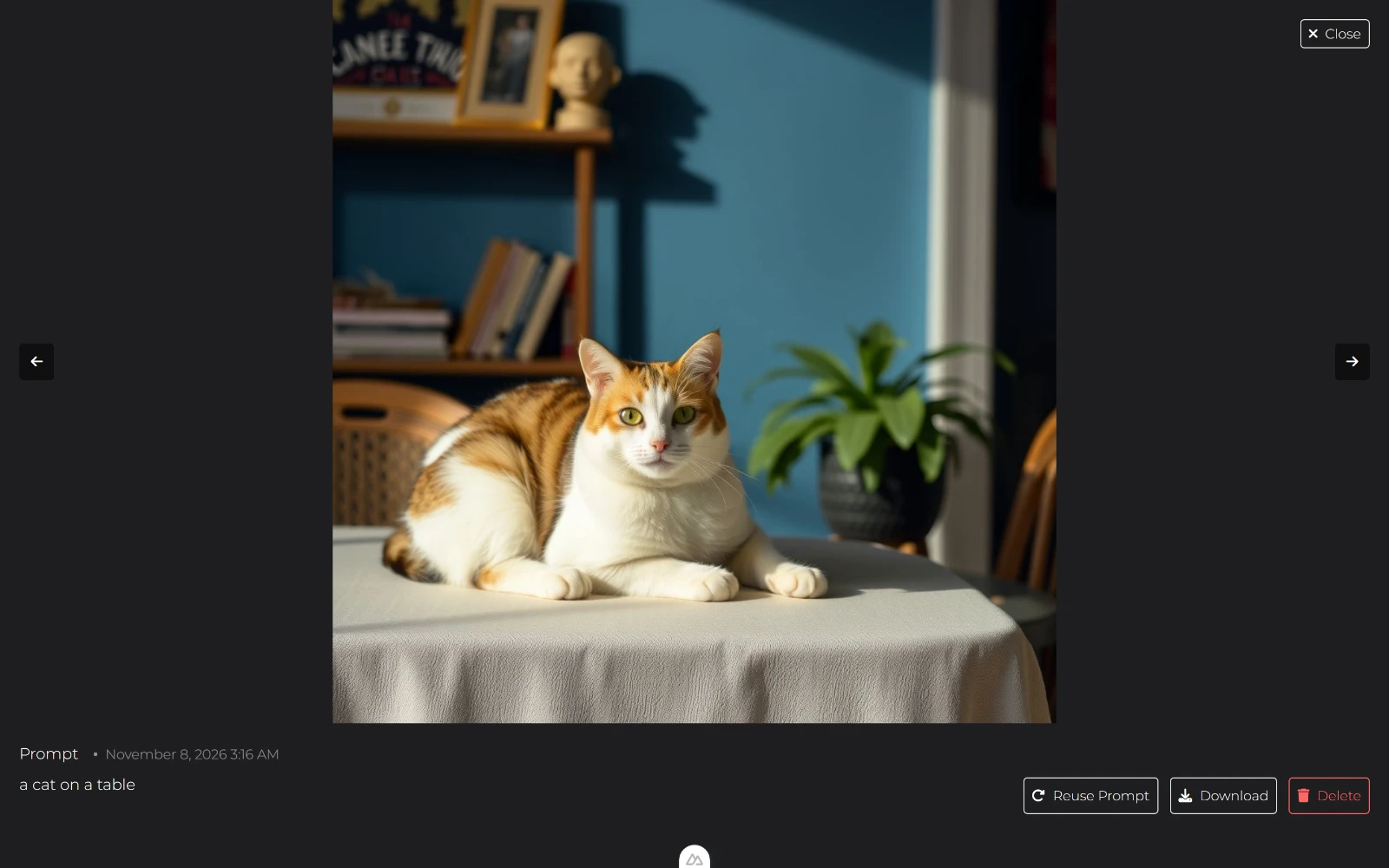
That leaves the generator nothing to choose except averages. Here's the same idea with the missing slots filled:
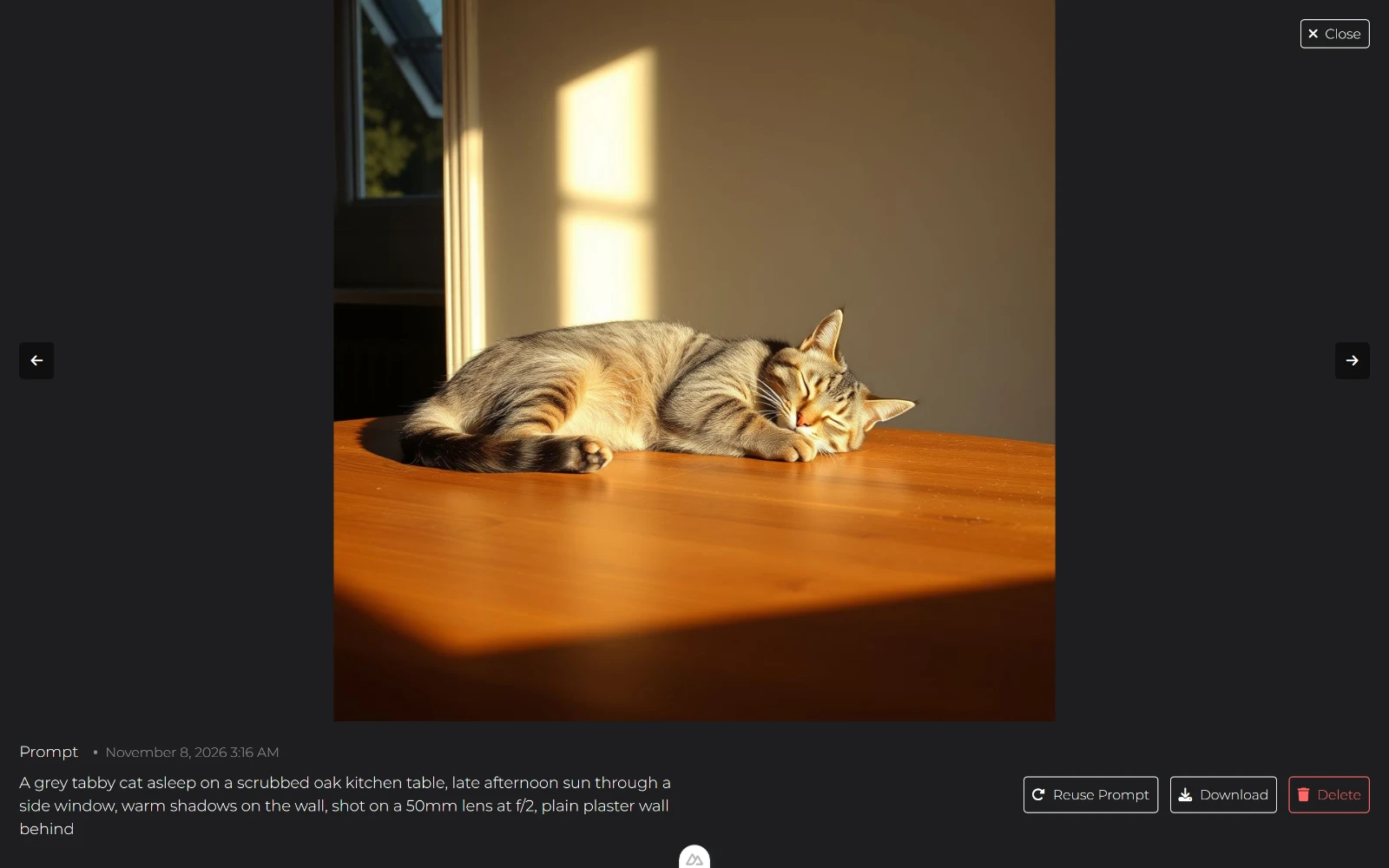
A grey tabby cat asleep on a scrubbed oak kitchen table, late afternoon sun through a side window, warm shadows on the wall, shot on a 50mm lens at f/2, plain plaster wall behind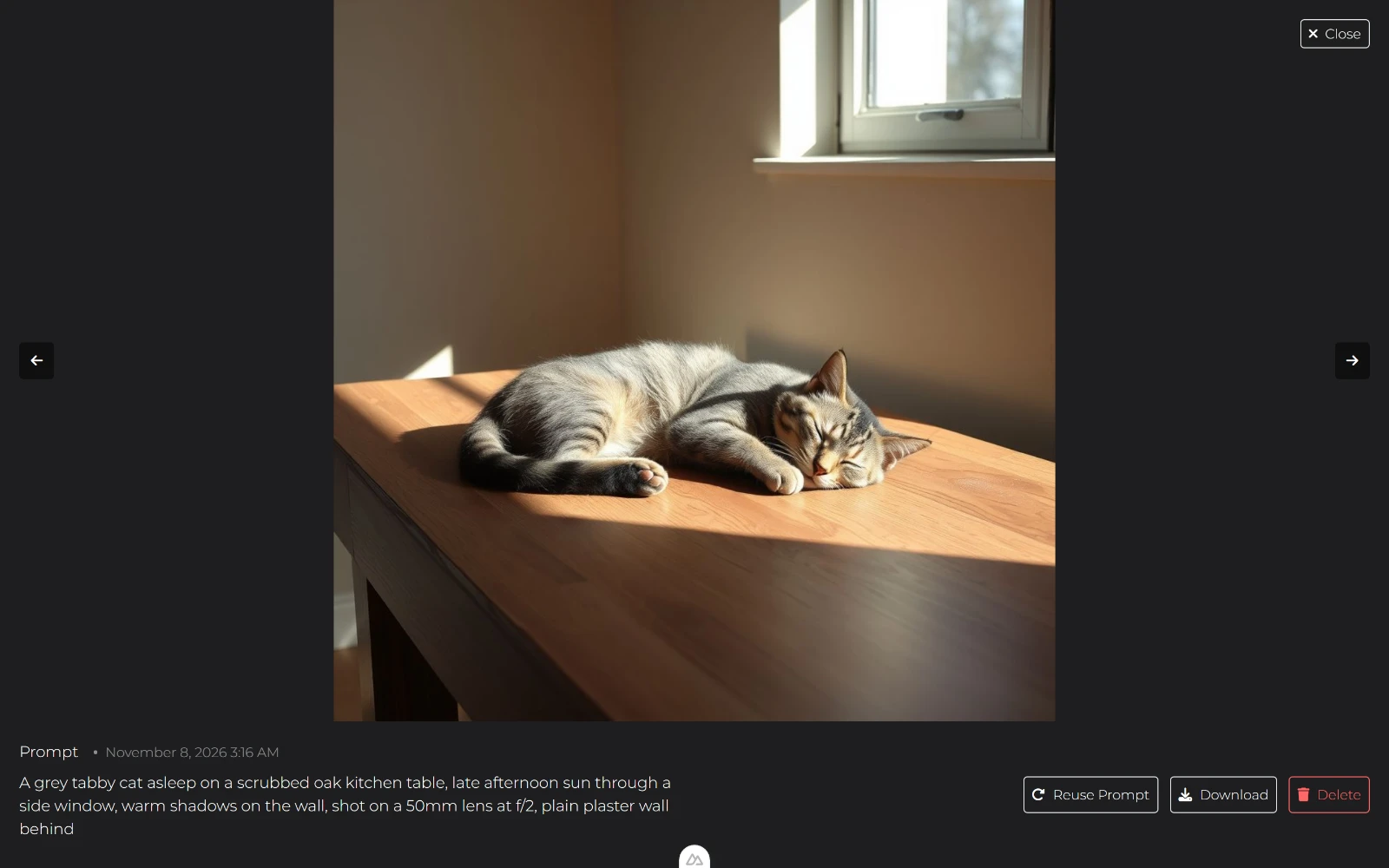
Same cat, same table. The second prompt adds an action (asleep), a material (scrubbed oak), a light with a source and a direction, the shadows that light throws, and a lens. To fix the prompt you already wrote, add those five things and delete nothing, because the words already there are choices you made.
If a render fails, the page says Can't generate image, try another prompt! Rewrite one clause and run it again rather than rebuilding the whole sentence.
Which words change the output, and which do nothing
Five swaps, one per example above, each touching exactly one slot:
photo to flat vector illustration changes the medium and nothing else.
golden hour light to grey overcast light changes the light, and the shadows follow.
centred with plenty of empty space around it to close-up crop filling the frame changes the composition and the amount of margin.
a lighthouse keeper to a botanist changes the subject and leaves the light, the lens and the framing where they were.
empty space at the top to empty space at the bottom changes the layout, which is what you change when type has to sit somewhere else.
The words that do nothing are the ones with no picture behind them: beautiful, stunning, high quality, award-winning, masterpiece, 8k. None of them names something a generator can draw, so each is a slot you spent without deciding anything. Replace one with a noun: instead of "beautiful light", name the hour and the side it comes from.
The syntax that does nothing is syntax with nowhere to go. Weights, ratio flags and negative-prompt lists have no field on this form, and the ratio is the orientation button, so typed into the box they're just more sentence. Wrap a phrase in parentheses and you've given the generator punctuation, not emphasis.
How to make AI images look realistic
Realism comes from four things you can name, in this order:
A light with a direction. "Late afternoon sun through a side window" gives the shadows somewhere to fall, the way they do outside.
Materials rather than moods. "Scrubbed oak", "pale grey seamless background", "crisp highlight down the glass" say what a surface does with the light.
A camera. A focal length and an aperture imply the depth of field a photograph would have: "85mm lens", "f/2".
One imperfection. A half-full cup, a folded napkin, a scuff on the table. Perfect symmetry reads as a render.
The rest belongs to the generator. Each run returns one JPG at quality 80, and there's no model picker and no realism switch to set. For a person, choose Portrait: the 4:5 crop is the shape photographs are usually shown in.
How to reuse the same prompt on a different generator
The six slots travel; the syntax around them doesn't.
The sentence carries over. Subject, setting, light, lens and empty space are words, and every generator reads words.
Weight syntax, ratio flags and negative prompts don't land here. There's no field for them on this form, so they join the sentence as text, and the frame comes from the orientation button.
Your own wording is what you get back. The large view prints the prompt you typed and the date you made it, so a month later you can still read the words behind the picture.
So paste the sentence into the other tool's prompt field unchanged, then express the frame in whatever control that tool gives you, the way Square, Portrait and Landscape do here.
To rerun something from months ago, open the image and choose Reuse Prompt: it puts that exact prompt back in the box. A thumbnail shows only the first 20 characters of its prompt on hover, so open the image when you want to read all of it.
For a gallery on another tool: nanobanana.org's Banana Prompts offers 11 categories with one-click copy and no explanation of why a prompt works. Take the sentence, leave the syntax.
Where to paste these prompts and see the result for free
Open the AI Image Generator page and choose one of its Try it Out buttons: they open the generator, while the hero's Get Started button goes to sign-up.
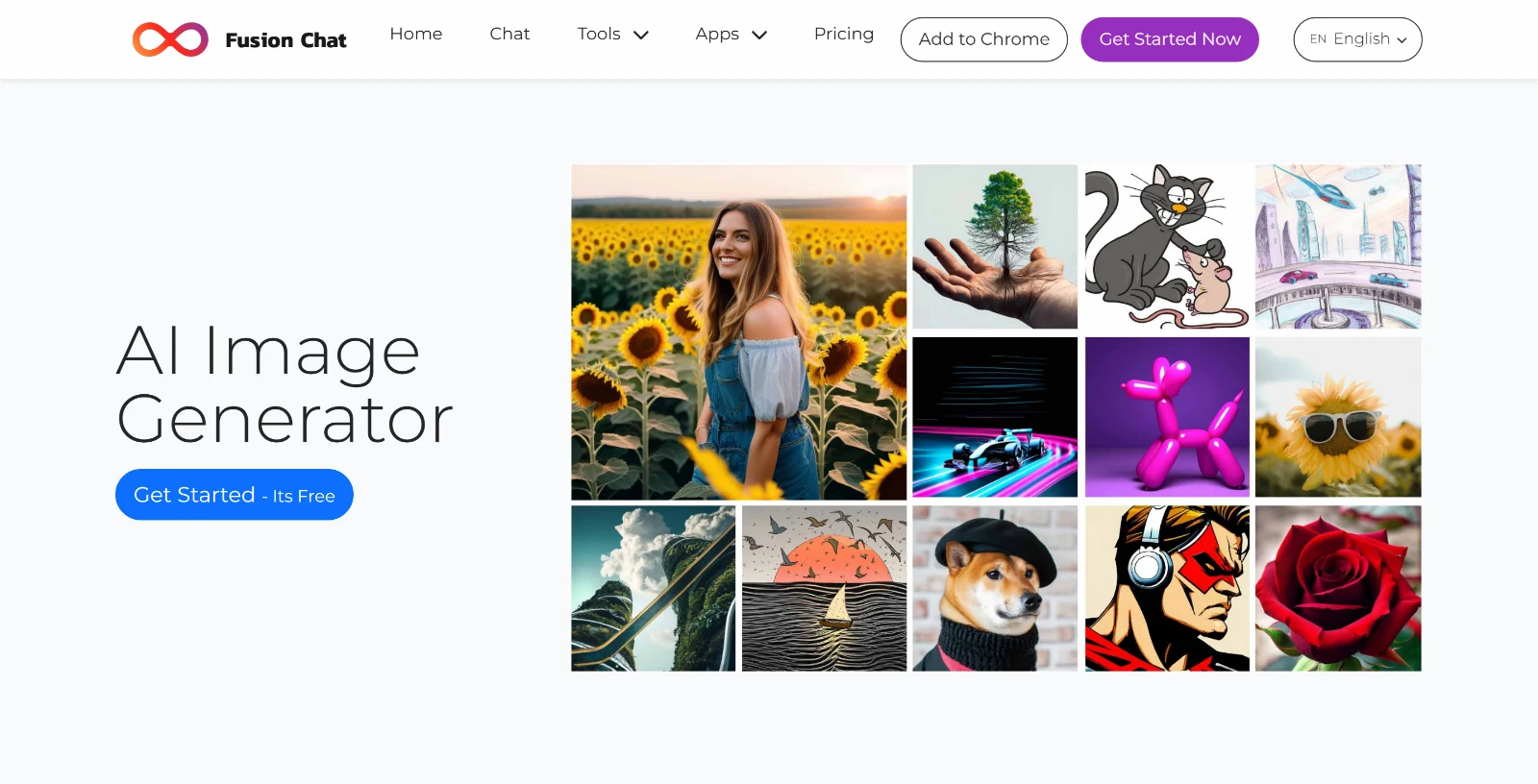
You'll need an account, and a new one starts with 50 credits that expire one month later, with each image spending credits from that balance. When the balance runs out the page says You don't have enough credits to generate an image. and links to buying more. Your images collect newest-first in the grid, older ones behind Load more.
The generator screen itself is English-only and unindexed, so search won't find it; the tool page above is the way in.
More AI Image Generator guides and how-tos gather on the topic hub as they publish.
Start with the prompt you already ran
Take the prompt that came back wrong, add a light with a direction and a lens, and run it once more. If it's closer, keep the words you added and change the next slot. If it's worse, you've learned which word to leave alone, which is faster progress than starting from a blank box.
Frequently asked questions
What makes an AI image prompt work?
What are example prompts for the common jobs?
Why did my prompt come back generic, and how do I fix it?
Which words actually change the output, and which do nothing?
How do I make AI images look realistic?
How do I reuse the same prompt on a different generator?
Where can I paste these prompts and see the result for free?
First published · Last updated : Re-shot the example screenshots so each one shows the image its own prompt made.