How to Translate a Text Message Without an App
A message lands in Spanish and you catch the shape of it but not the deal. Someone is asking about tomorrow afternoon, someone mentions six o'clock, and there's a question mark at the end. You'd copy it into a translation app, except the message came through WhatsApp Web on a work laptop, or it's on your phone and the app wants you to enable a setting and pick two languages before it does anything.
Short version: to translate a text message without an app, copy it, paste it into a browser translator and read the English. Then write your reply in English and translate that, so what you send back is already in their language.
That's the loop this post walks, end to end, with one message carried from first read to answer. We'll also cover the part no app setting solves: tone, slang, politeness levels, and what to do when the only copy you have is a screenshot.
How to translate a text message without installing an app
You need a browser and the message. Nothing gets installed, and you can start without an account.
Open the translator
Go to the fusionchat.ai translator. The card opens with Auto Detect on the left menu, English US on the right, and Your translation will appear here in the right-hand panel.
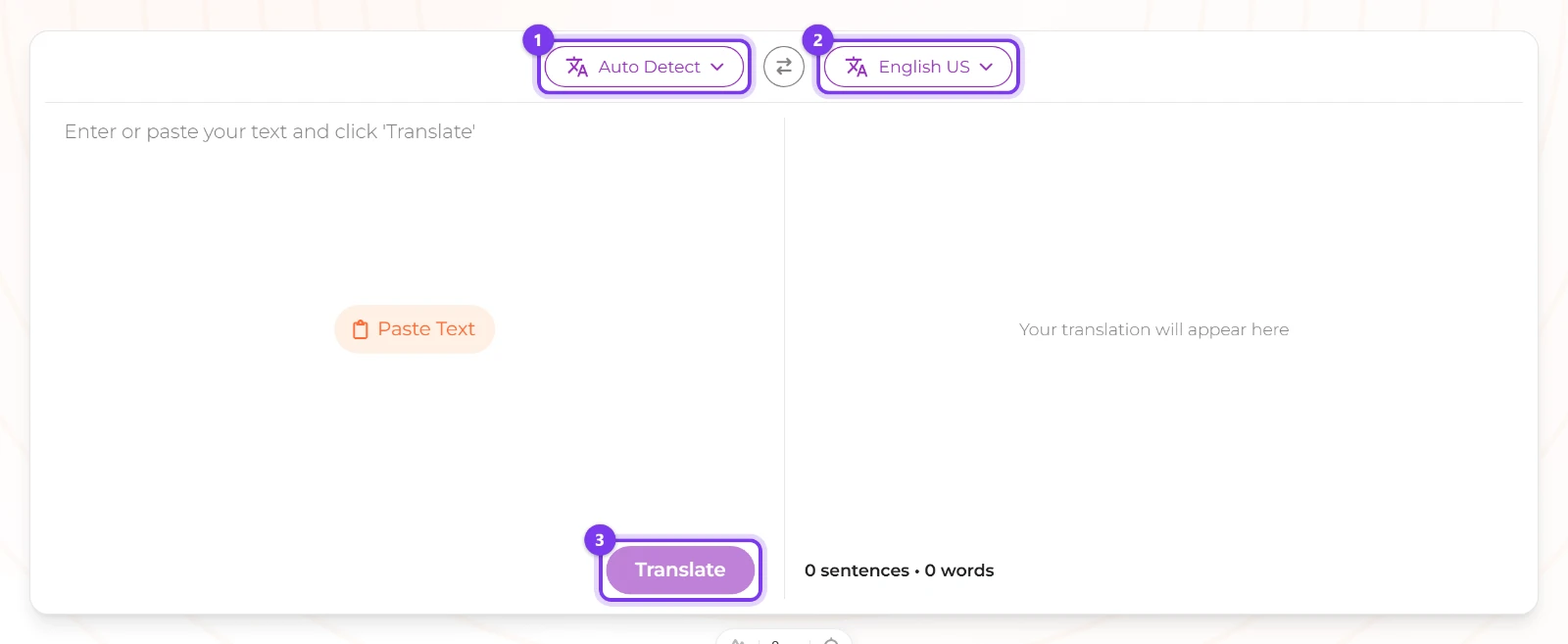
The empty tool card: paste with Ctrl+V, then press Translate. Those two menus are the whole setup: left is the language you're reading, right is the language you want. On a first run you change neither.
Paste the message you received
Select it in whichever app it arrived in, copy, then paste it into the box that reads Enter or paste your text and click 'Translate'. There's no upload control and no image input on the page, so paste or retype is the only way in.
Our example is one line from a friend: "¡Oye! ¿Nos vemos mañana en la tarde? Llego como a las 6, ¿te parece?"
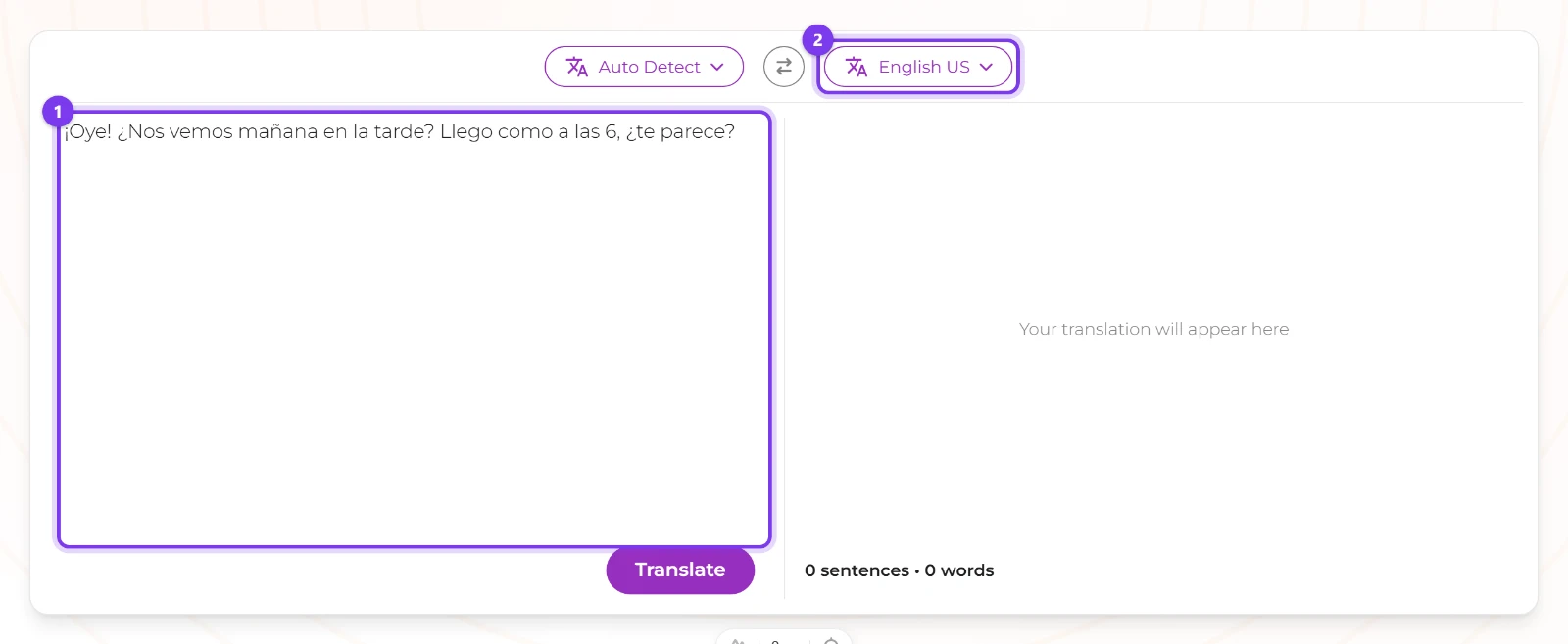
A Spanish message pasted in, with Auto Detect on the left and English US on the right. Paste the greeting and the sign-off along with the question. A fragment on its own is harder to read than the message it came out of, and the greeting is what tells the translator who is talking to whom.
Press Translate and read the English
Press Translate. The button reads Translating... while it works, then the English appears in the right panel with a word and sentence count on each side and a copy icon beside the result.
What comes back for our message is a friend checking whether you two are still on for tomorrow afternoon and saying they'll get there around six. You now know what was asked. You don't yet have an answer, which is the next problem.
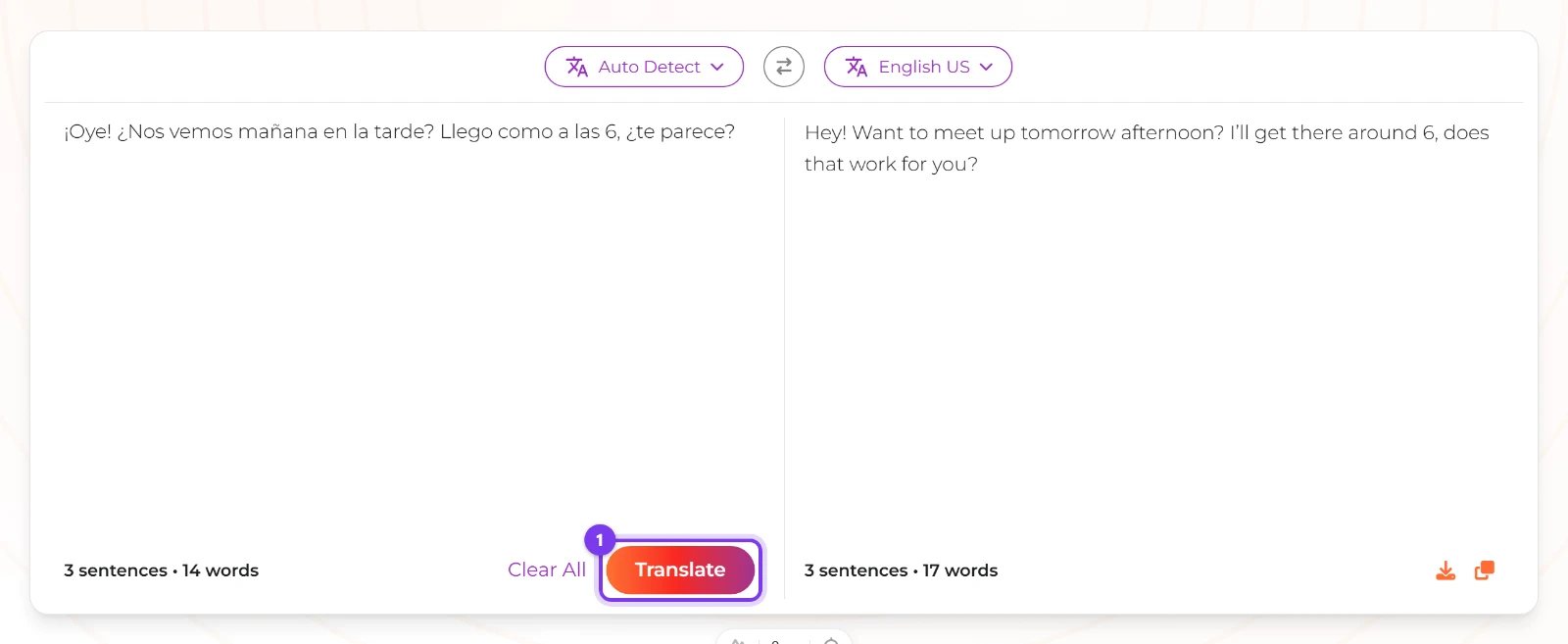
Press Translate: the English version, both counters and the copy icon.
Automatically translate text messages: what iOS and Android actually do
Both phones can translate a message where it sits, but only one of them acts on a copy.
Android. In the Google Translate app, Menu → Settings → Tap to Translate → Enable. After that, copied text can be translated from a floating icon, and Google says it "works with text, not with images" (Google's Tap to Translate help page).
iPhone. There's no copy-triggered equivalent. Inside a supported app you select the text, tap Translate, choose the two languages, and read it or use Replace with Translation; Apple notes translation "is available for supported languages" (Apple's guide to translating text in apps).
Both routes live inside the phone. A message that arrives in WhatsApp Web, a webmail tab or a desktop chat client is outside both of them, which is exactly the gap the paste loop fills.
Neither writes the reply either, and neither is much help when the message is full of names. RapidTranslate's own walkthrough of automatic message translation is candid about where results thin out: Hindi, Tamil and Tagalog are "noticeably weaker, particularly with names, honorifics and anything written in a non-Latin script" (RapidTranslate's walkthrough).
How to translate a text message on iPhone or Android
Copy the message out on iPhone
Select the text and tap Copy, or use Translate inside a supported app with Replace with Translation when you want it changed in place. Then paste it into the translator as in the paste step above. Copying the whole message, not a screenshot of it, is what keeps the translation exact.
Turn on Tap to Translate on Android
In the Google Translate app: Menu → Settings → Tap to Translate → Enable. Copied text can then be translated from the floating icon, and the result pasted into the conversation. That saves you switching apps for every message in a long thread.
Either way you end up at a box with two menus set. On a desktop, that box is the entire workflow.
How to translate an email or a long message
Paste the email in one go
An email body fits in a single paste, so keep the greeting, the ask and the sign-off together. They're what tells you the register, and the register is what you'll have to match when you answer. The download icon on the output side saves the result as a text file, which is handy when you want the English beside you while you write the reply.
How to keep the tone right: casual with a friend, formal with a colleague
There's no tone or formality control on the page, so the register has to travel in the words you paste. Our message is the easy case, a friend being loose. The same question to a client is a different sentence in English, and a different sentence again in Spanish.
With a friend, translate the loose line you'd actually say. Slang that's already in your sentence survives far better than slang you're hoping the tool will supply.
With a colleague, write the polite English first and translate that. A translator can keep a register it was given; it can't invent a relationship it wasn't told about.
For honorific systems, start from their message and mirror its ending. In Korean and Japanese the politeness lives in the verb ending, and in Hindi the choice between आप and तुम decides the distance.
When slang and abbreviations come out literal
Each run stands on its own, with no memory of the last one, so the fix is in the paste rather than in a retry.
Expand the abbreviation. "brb", "lol" and "tbh" mean nothing without chat history. Paste "be right back" and translate that.
Keep the sentence around the slang. One word gives nothing to work with, and one word is where literal output comes from.
Translate back to check the sense. Once you've set both languages by hand, the arrow button between the menus swaps them in one click; with Auto Detect still on the left, the swap leaves nothing to detect from and the run is refused, so set the pair yourself instead. If the English that comes back reads like your original, the meaning survived.
If the wording is right and still sounds stiff, how to humanize AI text is the next thing to read before you translate.
How to write your reply in their language and check it before you send
This is the half most people skip. Reading is the easy part; sending back English to someone who wrote to you in Spanish quietly hands them the work.
Translate your reply into their language
Write the answer the way you'd say it. For our example: "Sounds good, see you at 6. Should I bring anything?" Set the left menu to English US and Translate To to Spanish, paste, and press Translate. Copy the result with the copy icon, because nothing leaves this page by itself: the output is plain text with no send or share control.
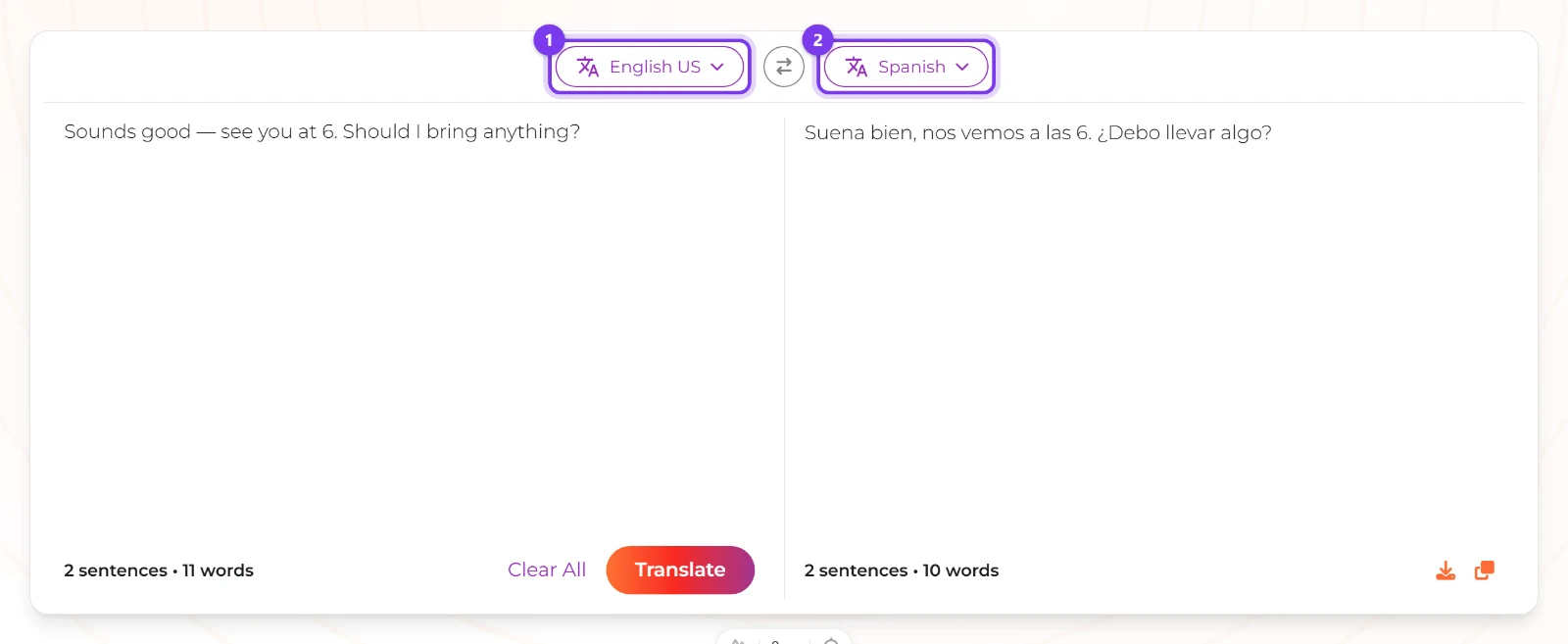
The reply translated: English US on the left menu, Spanish on the right.
Non-Latin scripts and names: Hindi, Arabic and what the menu leaves out
The Translate To menu holds 35 languages plus Auto Detect. Hindi, Arabic, Bengali, Chinese, Japanese, Korean, Amharic and Armenian are among them. Urdu, Tamil, Tagalog, Thai, Hebrew, Persian, Ukrainian and Malay aren't. Hindi and Urdu are close in speech and nothing alike in writing, so check the list before you promise a translation in writing.
Check the language list before you promise anything
Open Translate To and read down it. If their language isn't there, say so in the message rather than sending a near neighbour such as Hindi for Urdu.
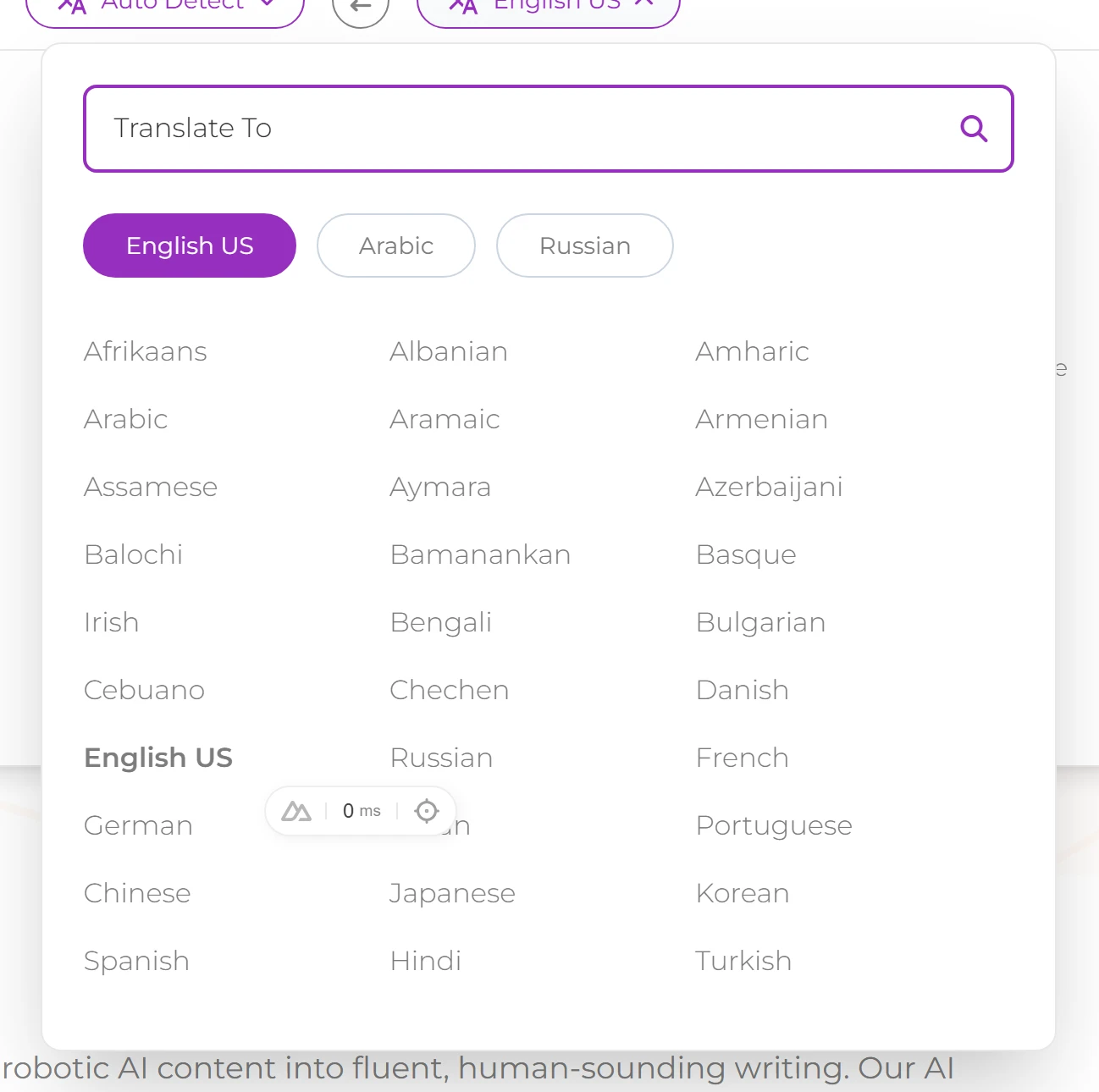
The Translate To menu in full, Afrikaans down to Indonesian: 35 languages, and no Urdu, Tamil or Tagalog in it.
Names are their own trap. Auto Detect needs a full sentence to be sure which language it's reading, and a one-line "Ok" can come back as the wrong one, so paste the sentence around it. Keep names in the spelling the sender used, too: a Latin-script name sitting inside a Devanagari or Arabic sentence is normal output, not an error.
Can you translate a screenshot of a message?
Not on this page. There's no image input and no upload control, so the text has to come out of the picture first.
iPhone. Live Text reads the text in the camera frame, and Copy hands it to Notes or Messages (Apple's Live Text help page).
Android. Tap to Translate works with text, not images, so copy the text out of the photo if the app allows it, or retype it.
Neither. Type the message in yourself. Ten words of retyping beats a screenshot that never becomes text.
What "free" means here, and when you'll be asked to sign in
You can use the translator before you have an account. After a few free runs the page asks you to sign in or sign up, in a popup titled You've reached your free limit with Login and Sign up buttons. Any other failed run prints Failed to translate. Please try again. in the output panel next to a Sign up for free button.
Guides to this tool collect under more tools translator guides.
Read the message, then answer it
Getting the English is half the job, and the half you'll remember. The other half is translating the reply you actually want to send, then translating it back once to hear how it sounds. Try it on the next message that lands in a language you don't read: read it, write the answer in English, translate it, check it, send. It's one paste in each direction.
Frequently asked questions
How do I translate a text message I received without installing an app or changing phone settings?
How do I keep the tone right, casual with a friend and formal with a colleague?
How do I handle slang, idioms and abbreviations that come out literal or wrong?
How do I write my reply in their language and check it before sending?
What about non-Latin scripts (Hindi, Tamil, Tagalog, Urdu, Arabic) and names?
Can I translate a screenshot of a message, and what if I can't copy the text?
First published · Last updated : 2026-11-07: Rewrote it in our own voice. The reader's problem comes first, one Spanish message is carried through every step, and the internal detail about prompts, limits and metering is gone.