A Quick-Start Handbook for Effective Prompts
Understanding your customers inside and out is your ticket to success. You’re in charge of maintaining critical relationships, deciphering buying signals, crafting tailored solutions, driving revenue for the business, and more.
Integrating Prompts in Your Daily Tasks
This section provides you with simple ways to integrate prompts in your daily tasks. First, review the general prompt-writing tips in the How to write effective prompts section.
Collaborating with Gemini for Google Workspace
Each prompt below is presented with an accompanying scenario to serve as inspiration for how you can collaborate with Gemini for Google Workspace. The prompt iteration example shows how you could write follow-up prompts to build on the initial generated response.
Scenario 1: Connecting with a New Customer
You’re an account executive, and you’ve just been assigned to a new customer. You need a research assistant. You will need to get to know key contacts at the account to begin building trust between your teams. First, you want to send an introductory email, so you open Gmail and prompt Gemini in Gmail by selecting Help me write. You type:

This provides a helpful starting point, but you want to try getting an even better response. You click Refine and Formalize.
You continue your research by first focusing on news announcements. You gather a list of URLs, and you paste them into your conversation with the Gemini app. You type:
Scenario 2: Managing Customer Relationships
You need to contact all of your team leads in the Southeast region to provide immediate guidance on how to proactively reach out to customers about an ongoing issue. You open Gmail and prompt Gemini in Gmail by selecting Help me write. You type:
Now, you need to email all of the regional team members. You open Gmail and prompt Gemini in Gmail by selecting Help me write. You type:
Scenario 3: Improving Meeting Efficiency
You’re having an important meeting with a customer. From Google Meet, you turn on Transcription and activate Gemini in Meet by selecting Take notes with Gemini.
After the call, you want to send a recap message to the customer. You open a new message and prompt Gemini in the Gmail side panel and tag relevant files by typing @file name. You type:
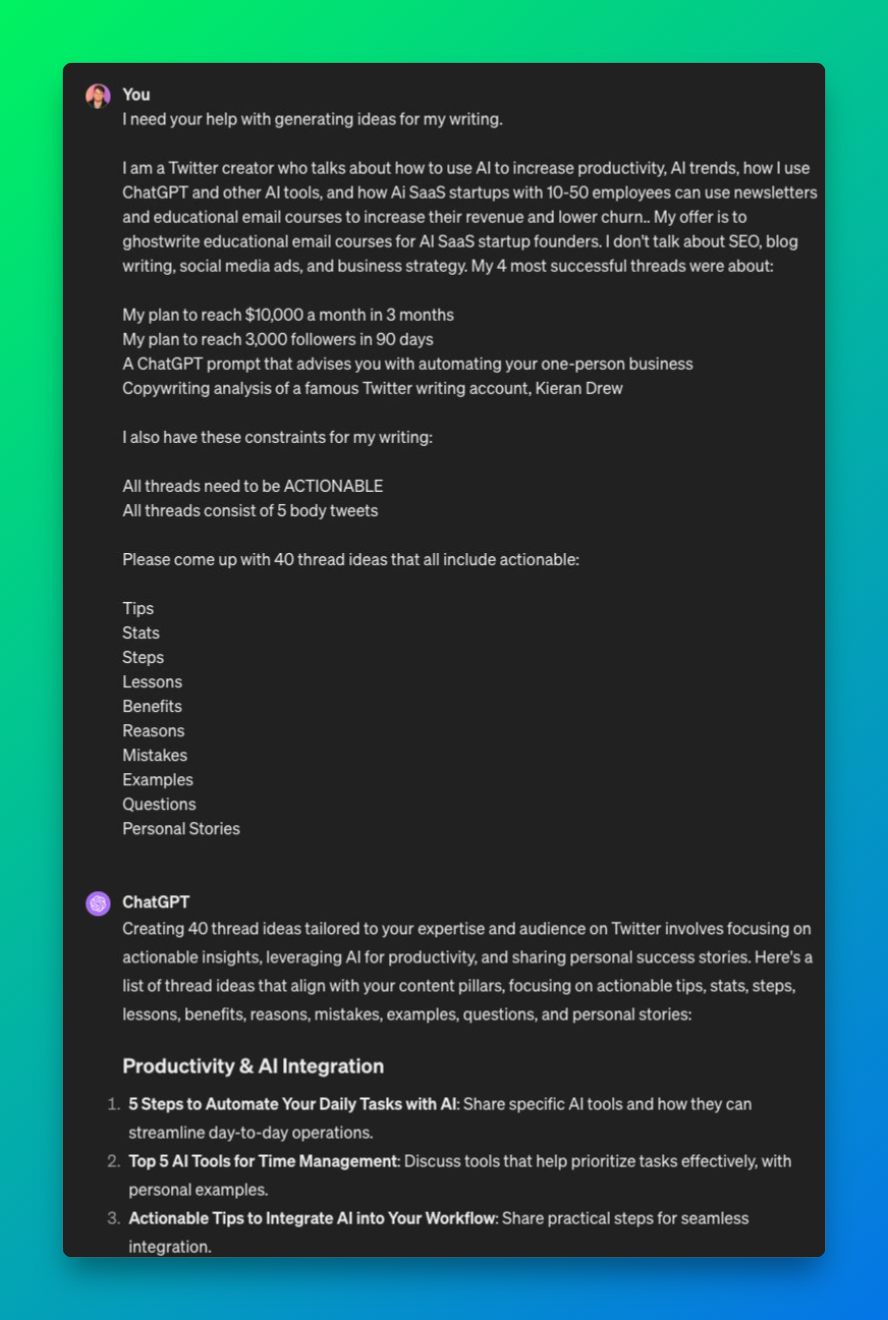
In preparation for your next meeting, you want to use the transcript and your existing sales materials to generate a customized asset that showcases how your company’s product solves the customer’s pain points mentioned during the call. You open a new Doc and prompt Gemini in the Docs side panel and tag relevant files by typing @file name. You type:
You just had a great call with a customer and now you want to use the notes you took from the meeting in Google Docs to draft an email to the customer. In the Google Doc with your notes, you prompt Gemini in Docs by selecting Help me write. You type:
Explore the curated resources — from prompting guidance to customer stories and more — to learn how to get the most out of Gemini for Google Workspace.