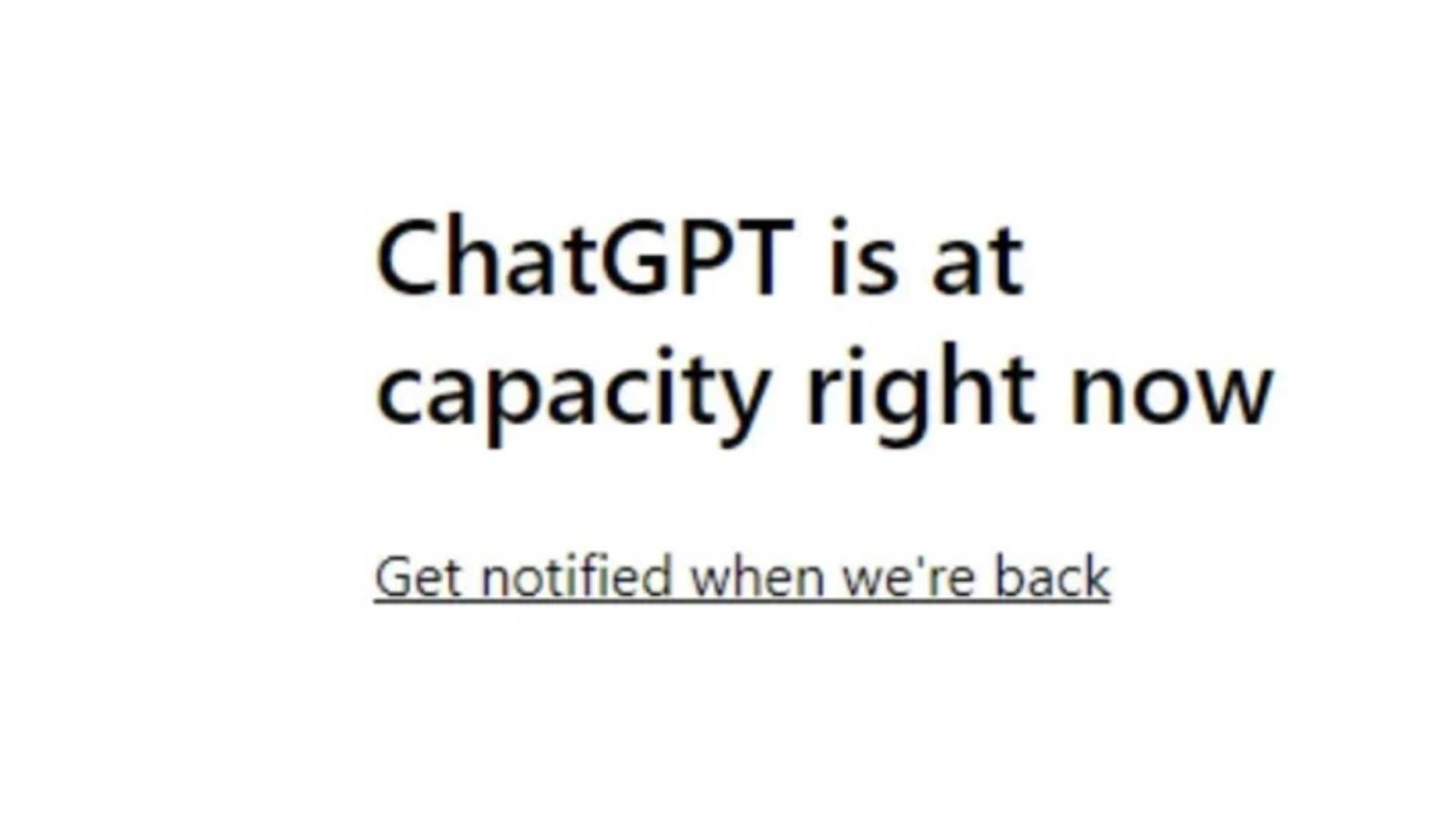
How To Fix the "ChatGPT Is at Capacity" Error: Simple Tips
Encountering the "ChatGPT is at capacity, right now" error message can be super frustrating, especially when you're in a rush and have been counting on the AI service for help with an important task. The error indicates that the service is experiencing high demand and temporarily cannot accommodate more users. Although it's not a major problem, it can entirely mess up your plans and timelines – but not if you follow our simple yet very effective strategies to overcome this challenge and regain instant access to ChatGPT.
Using a VPN to Fix the Error
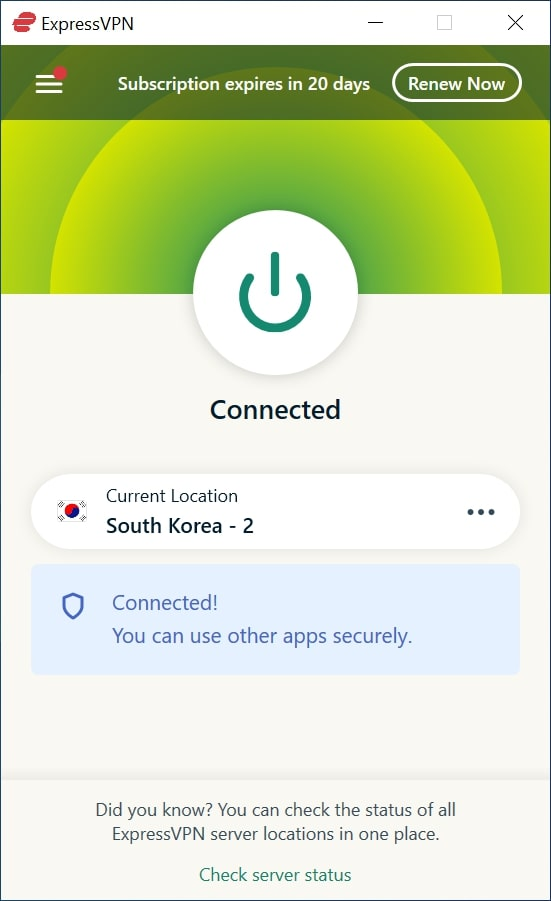
The most likely cause of receiving this message is that too many people in your city or country are trying to use ChatGPT at the same time and the local servers truly are at capacity. Therefore, the most effective method to fix the "ChatGPT is at capacity" error is using a VPN. A VPN will tunnel your traffic to another (its own) server to make it look like you're sending an inquiry from another city, or an entirely different region if you like. This ensures you bypass all the congestion and access your favorite AI tool freely – be it ChatGPT or any other.
Still, we appreciate that VPNs require installing an app and paying for a subscription (if you're going to use a good one, at least), so if you want to try other options first, that's also reasonable. Keep in mind, though, that they might not work and you will need to resort to using a VPN in the end after all. However, the good news is that there are some stellar cheap VPNs on the market.
Alternative Methods to Try
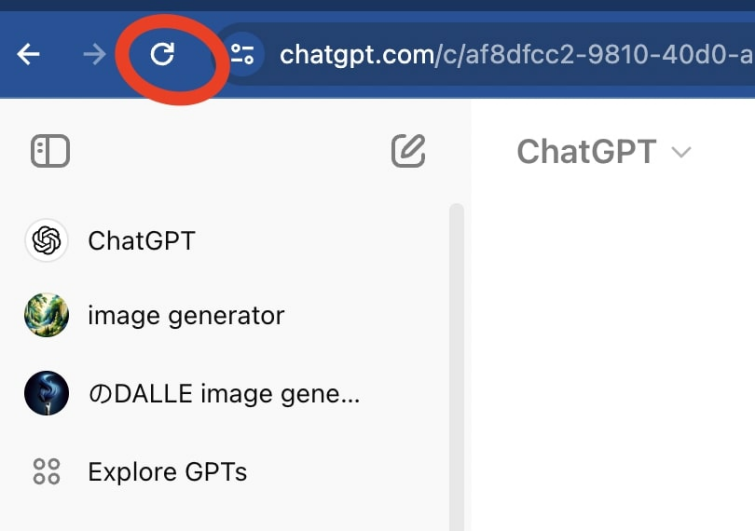
Sometimes, simply refreshing the page can do the trick of bypassing the ChatGPT congestion error. Hit the refresh button on your browser or press F5 to reload the page and see if you can access ChatGPT. It's the easiest thing you can do, so it's definitely worth a try, and you'll be among the first users to get access should the connectivity/capacity problem get resolved.
If you can afford to plan your next ChatGPT interaction ahead, try to use it during off-peak hours, such as early in the morning or late at night. That way, you'll have the luxury of speedy and uninterrupted ChatGPT service, as fewer users are likely to be online at that time.
Clearing Browser Cache and Cookies
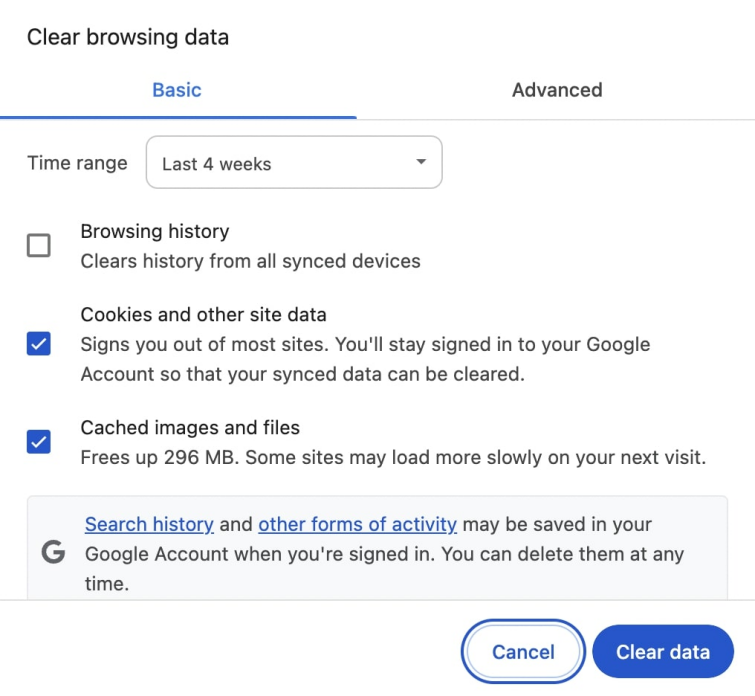
In households with multiple users, ChatGPT may work for one while showing the error message to another one. Don't worry, this is not because ChatGPT has favorites, the system is not capable of that… yet, but it could be an issue related to cookies or cache, which you can easily bypass by switching accounts. Clearing your browser’s cache and cookies can help resolve the capacity error. Go to your browser’s settings, find the options for clearing browsing data, and select cache and cookies to clear them. After that, refresh ChatGPT and try again.
In Chrome:
Keep Updated
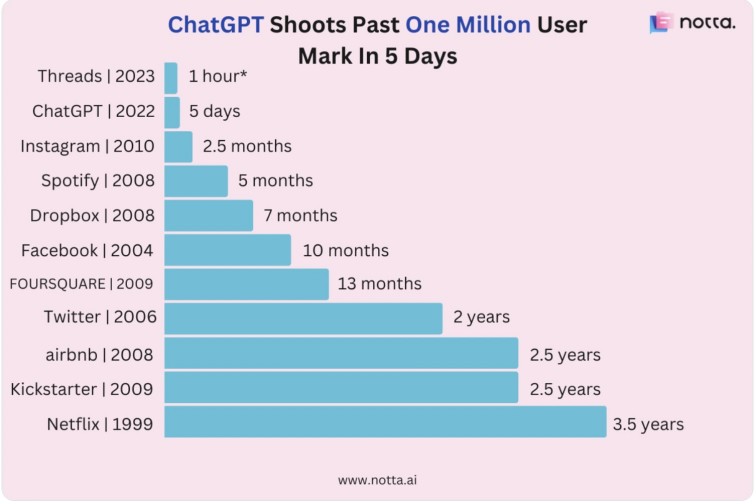
Although massively popular, keep in mind that the ChatGPT service is still relatively new, with many updates and improvements probably happening as we speak. Sometimes, capacity issues get resolved quickly by the service provider before you even have time to act, and no matter what you do, you won't be getting the service back until it gets back by itself. Keeping an eye on OpenAI’s status page or their social media channels for news on the service updates is a good idea. It might save you from unpleasant scenarios in the future.
Exploring Alternatives
Sometimes (rarely but it happens) the problem isn't in the service you're trying to access but the browser or app you're using to access it. Also, using a different channel or device will launch a new ChatGPT session for you (strapped off previous cookies and cache), which might help circumvent the issue. So, if opening ChatGPT fails in a specific website or portal, try using an alternative one. For example, if you’re using Chrome, consider using a mobile app or a different web browser.
Open your browser in incognito or private mode to access ChatGPT. This is another way to prevent any issues related to browser caching or cookies that might be causing or contributing to the error.

Consider Upgrading to ChatGPT Plus
ChatGPT offers a premium tier, already available in many countries across the globe. As with most upgrades, ChatGPT Plus users get priority access over free ones, resulting in faster response times from the chatbot. Additionally, you'll get early access to new features and more privacy, as the platform claims they are not logging queries from paid subscribers for AI chatbot training purposes.
If nothing on this list works, using a VPN can be your only hope to bypass the issue. If you haven't used a VPN before, don't worry! Launching and using a VPN is not as complicated or time-consuming as it sounds.
Exploring Alternative AI Writing Tools
If you're not exclusive about ChatGPT, you could try some of its alternatives while waiting. They might be available to you at your preferred timings and possibly even faster due to fewer people knowing about them, and, therefore, less crowding.
ChatGPT may be the most popular AI writing tool at the moment, but if you rely on AI daily, it might be a good idea to explore other options as well. Many AI alternatives specialize in different fields and offer unique features.
Here are some of our top recommendations:
Frequently Asked Questions (FAQs) About ChatGPT
The most common ChatGPT errors include:
- To minimize errors with the most popular AI platform:
- Subscribing to ChatGPT Plus is one way of getting faster response times and priority access during high-traffic periods. Using a VPN is another one. Both can help reduce wait times and improve your overall experience.


