How to link ChatGPT Advanced Voice Mode to iPhone action button...
Join our daily and weekly newsletters for the latest updates and exclusive content on industry-leading AI coverage. Learn More
I have a confession to make: Even though I’ve been a tech journalist for much of my career and consistently rushed to embrace, or at least test out, the latest and greatest in personal technology, I’ve never quite found voice assistants to be useful for me to use regularly.
Evolution of Voice Assistants
Part of that was because the tech has so far been admittedly pretty clunky: Apple pushed the boundary by acquiring and releasing Siri back in 2011, and was soon joined by the Amazon Echo smart speaker and Alexa voice assistant back in 2014. While I tested and used both, I stopped after a few weeks in both cases because I found myself constantly having to “fight” with the voice interaction — pausing before I spoke a query or repeating myself too often, for example.
I know I’m hardly alone, as numerous articles have been written over the last decade-plus about the shortcomings of both of those early voice assistants.
Introduction of ChatGPT Advanced Voice Mode
But then along came OpenAI with ChatGPT, and its humanlike Advanced Voice Mode audio interaction launched — finally, after a lengthy delay from its first target date — back in September 2024. Many AI power users have remarked about how useful and helpful OpenAI’s ChatGPT Advanced Voice Mode is: able to scour the web for information and carry on full conversations, analyze and react to imagery uploaded to it, even to pause when interrupted and allow the human user to redirect or move the conversation to other topics rapidly — much like real human-to-human conversation.
Mapping ChatGPT Advanced Voice Mode to iPhone Action Button
And more recently, OpenAI cofounder and president Greg Brockman reshared a post on X by AI power user and Wharton School of Business professor Ethan Mollick noting that it is possible with newer versions of the Apple iPhone to map its new “action button” to ChatGPT Advanced Voice Mode, allowing users to turn the voice on with one click.

I already had Advanced Voice Mode available to me as one of the pinnable and customizable widgets on the top of my iPhone Lock Screen, but this requires you to actually look down at the phone and find the icon. Mapping Advanced Voice Mode to the iPhone’s physical Action Button — the small one, located on the left side of the device — seems like an even more accessible option that requires only feel to activate. I just enabled it and am hopeful it will finally lead me to use this admittedly amazing tech more often. Here’s how I did it:
Setting up the Action Button
The Action Button is a new physical button located on the left edge of newer versions of the iPhone, just above the volume up and down buttons.
When setting up a new one of these iPhone models running iOS 18 or later, the phone’s starting process should give you an option to select what you want to use the Action Button for. By default, it is set to “silence” your iPhone’s ringer and notification sounds.
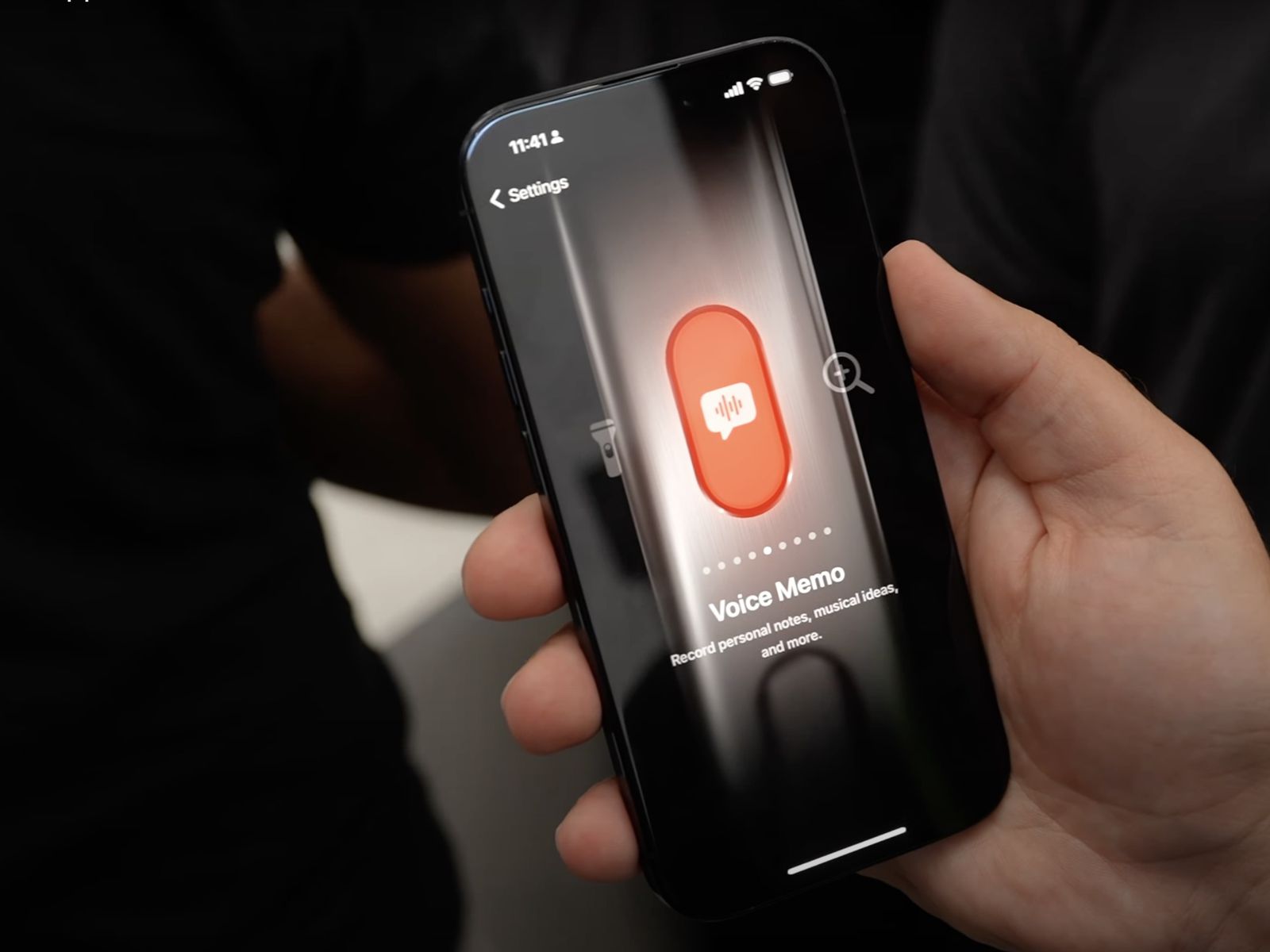
However, if you already set up your iPhone and didn’t get this option or use it, don’t fear! You can still adjust it later. Here’s how.
It’s available here. While free ChatGPT users can still access it, there is a variable monthly limit on how many times they can call up Advanced Voice Mode. ChatGPT Plus, Pro, Team, Enterprise and Edu paying subscribers (starting at $20 per month) all have much higher or unlimited caps on the number of Advanced Voice Mode interactions they can access.
Configuring the ChatGPT iOS App
Once you have the ChatGPT iOS app installed on your iPhone, proceed to the next step.
Tap on the “Settings” gear icon on your home screen. Then, scroll down to the second section of options and you should find “Action Button” listed third, below “General” and “Accessibility.” Tap it.
This should open the Action Button assignment application/option on your phone, which is a screen where you can swipe between different options for what the Action Button will do when pressed. Swipe left to move through the options (and right to go back to one) until you reach the option labeled “Shortcut” (it was the ninth screen for me). Tap the up/down arrow selector screen below the text “Shortcut” and it should open yet another selection screen, this time showing a variety of Shortcuts similar to those found in the official Apple iPhone Shortcuts app. Except, if you scroll down below “Get Started” and any custom shortcuts you previously created in the “My Shortcuts” sections, you’ll see a list of third-party app icons that also offer shortcuts. Among them should be the ChatGPT iOS app. Tap this.
Customizing iPhone Lock Screen
If you are interested in setting up your iPhone Lock Screen like I have, to also have a tappable onscreen icon to activate ChatGPT Advanced Voice Mode, you can do so pretty easily as well. Read on for how…
Once again, you’ll need to have the ChatGPT iOS app downloaded (duh). Then, you can tap to wake up your phone and long press on the time displayed at the top. This will bring you to the Lock Screen/Wallpaper customization screen.
Tap “Customize” then “Lock Screen” from the two options that appear.

After tapping “Lock Screen,” the iPhone should display an editable version of your Lock Screen denoted by boxes around widgets and interactive element spaces. Go ahead and tap the “Add Widgets” screen and it should present, among many different options from different apps, one showing the ChatGPT iOS App icon (a flower design) with a small headphone icon inside it. Tap this one and it should now appear in your top Lock Screen “shelf,” alongside any others you choose (I chose a Weather widget).
That’s it! Happy voice chatting and New Year.
If you want to impress your boss, VB Daily has you covered. We give you the inside scoop on what companies are doing with generative AI, from regulatory shifts to practical deployments, so you can share insights for maximum ROI.
Read our Privacy Policy