How To Bring Back The Good Ol' Google Assistant If You're Not ...
Google Gemini has been making headlines since its launch, and many times it has been for the wrong reasons. This AI-powered chatbot was initially just rolled out for desktop users however soon it was also rolled out for mobiles. It came and replaced the Google Assistant that used to reside in our phones earlier. It is no-brainer that the new digital assistant has indeed brought some cool and useful features, but, it has also made some of the users looking for ways to switch back to Google Assistant.
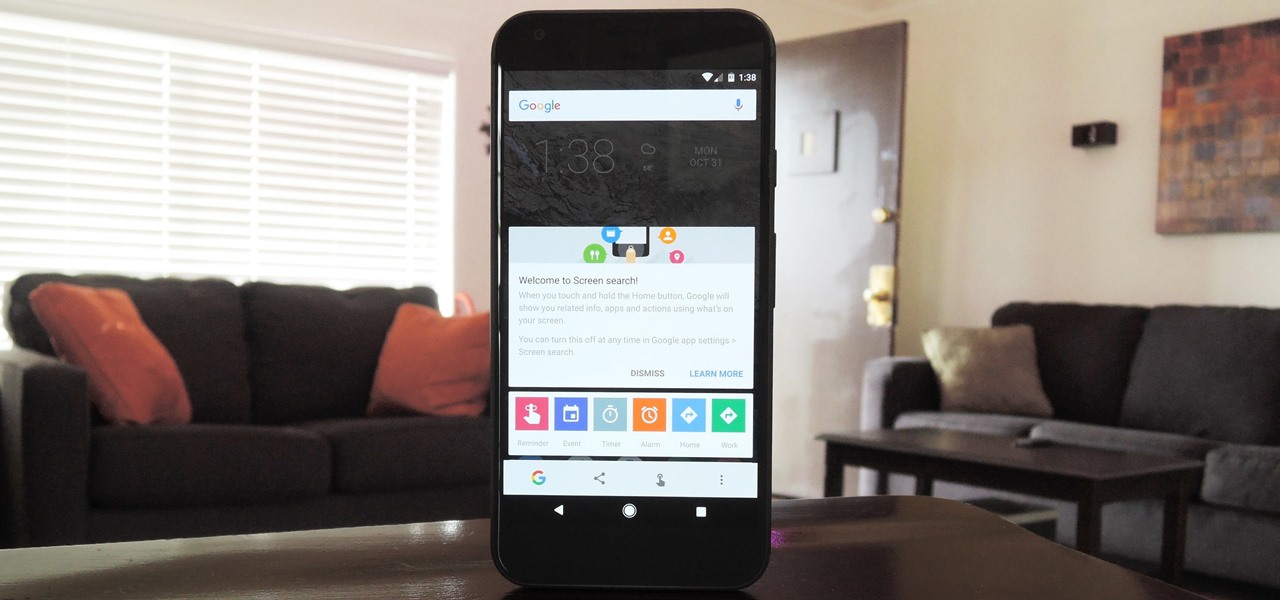
If you feel the same then fret not, we have got you covered. Here's how you can do so in just seven easy steps.
ALSO READ | Realme GT 6T Review: Knight In A Mirror Armour For Mid-Segment Gamers
Step 1:
Tap on your profile picture from the upper left corner of the screen and then proceed to go to ‘Settings’.
Step 2:
Find and click on the option named ‘Google Assistant’. A new window will then appear on your screen.
Step 3:
Scroll down a bit and then click on ‘Digital assistants from Google’.

You will then see the option to switch between Gemini and Google Assistant. Choose ‘Google Assistant’ and the app will confirm if you want to go back to the old digital assistant. Lastly, tap on ‘Switch’ and you are good to go.
After successfully performing these steps, your virtual assistant will be changed from Gemini to the good ol' Google assistant. So, the next time you say ‘Okay Google’ or ‘Hey Google’ or trigger the digital assistant by long pressing the power button, instead of Gemini, the trusted Google Assistant will pop up.