How to Add OpenAI ChatGPT to WordPress (Step-by-step)
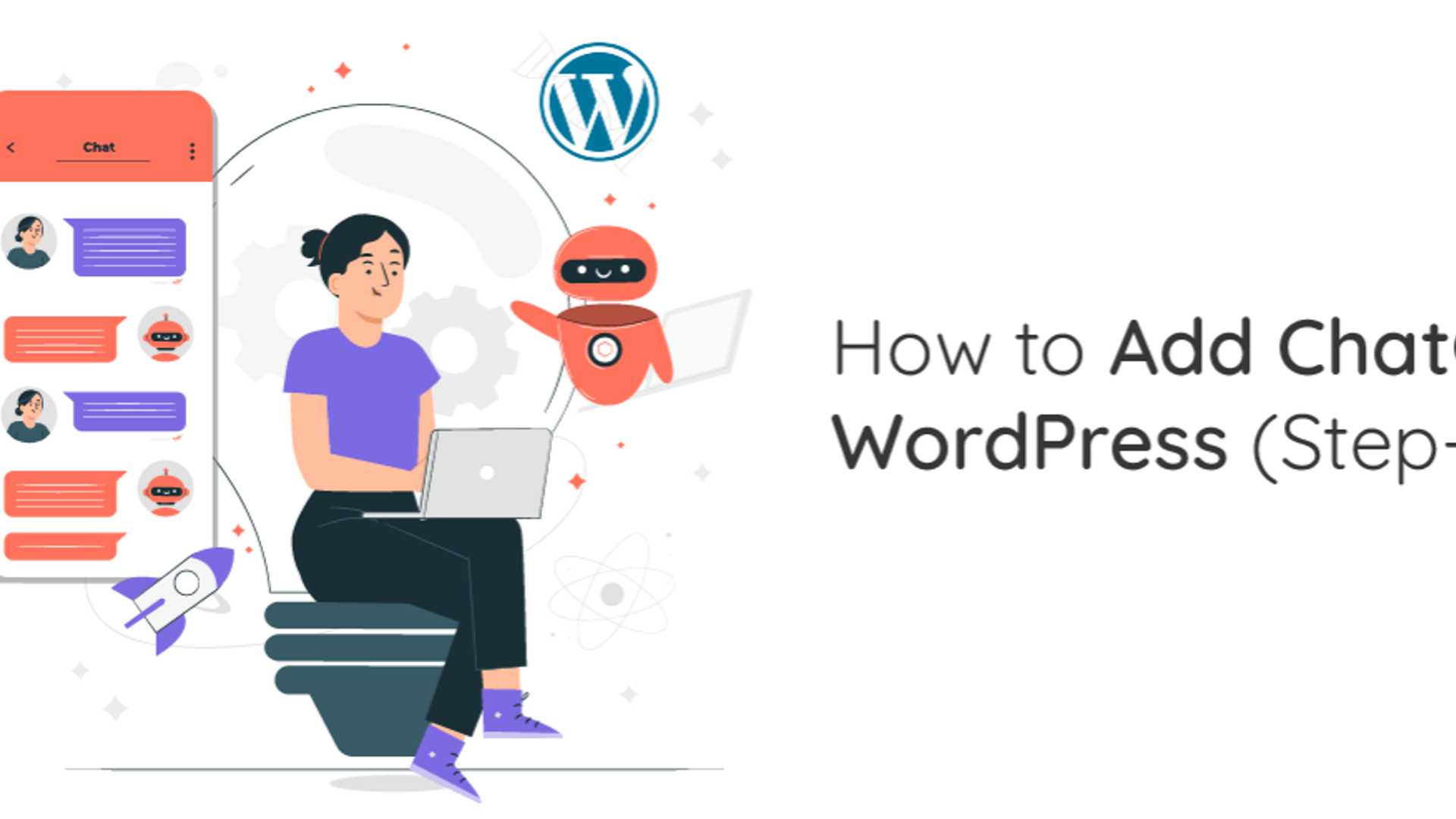
Adding OpenAI ChatGPT to WordPress is crucial for website owners seeking to enrich user interaction and automate responses effectively. By incorporating OpenAI ChatGPT, you can offer immediate replies to customer inquiries, produce dynamic content, and enhance engagement effortlessly. Whether you opt for using an API or a plugin, setting up ChatGPT on your WordPress site can be swiftly accomplished with the right approach.
Benefits of Adding ChatGPT to WordPress:
ChatGPT can be a valuable addition to your WordPress site, aiding in improving user interaction, automating tasks, and enhancing accessibility. Here are some key benefits of integrating ChatGPT:
- Get topic suggestions for blog posts
- Create structured outlines for articles
- Request code in CSS, HTML, or PHP formats
- Set up an automated chatbot for customer service
Step 1: Create an account & get the API key
First, you need to register for an Open AI account. Then, log in to the website and navigate to the account menu to select "View API key." Click on "Create new secret key" and then copy the API key provided.
Step 2: Install and setup 3rd plugin
To proceed, you require a third-party AI plugin like WP AI Assistant to connect OpenAI with WordPress. This plugin enables the creation of a chatbot that can respond to queries automatically. Here are the steps to integrate OpenAI with WP AI Assistant:
- Install the plugin by uploading the WordPress zip file under Plugins > Add New Plugin > Upload Plugin.
- Activate the plugin after uploading it.
- In the WP AI Assistant menu, navigate to Settings to paste the API key obtained from OpenAI.
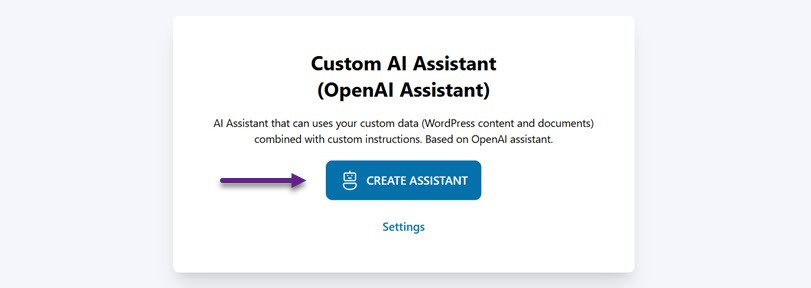
- Create an AI Assistant by entering the assistant's name and saving the changes.
Further settings include customization options for the chatbot's appearance, training the assistant with relevant data, and configuring advanced features like the OpenAI model to be used.
Common Issues and Solutions:
Integrating ChatGPT into WordPress can enhance the user experience, but it may come with technical challenges. Here are some common issues and how to address them:
1. Relevance of Responses: Make prompts more specific and consider using response templates for common scenarios to improve answer consistency.
2. Security and Privacy: Encrypt data sent to the server, limit sensitive information shared with ChatGPT, and employ data filtering before transmitting requests.
3. Performance: Check OpenAI server status, optimize API request code, and resolve conflicts with other plugins to enhance ChatGPT's responsiveness.
By implementing these strategies and utilizing tools like WP AI Assistant, you can create a seamless, AI-powered experience on your WordPress site, leading to improved functionality and user engagement.