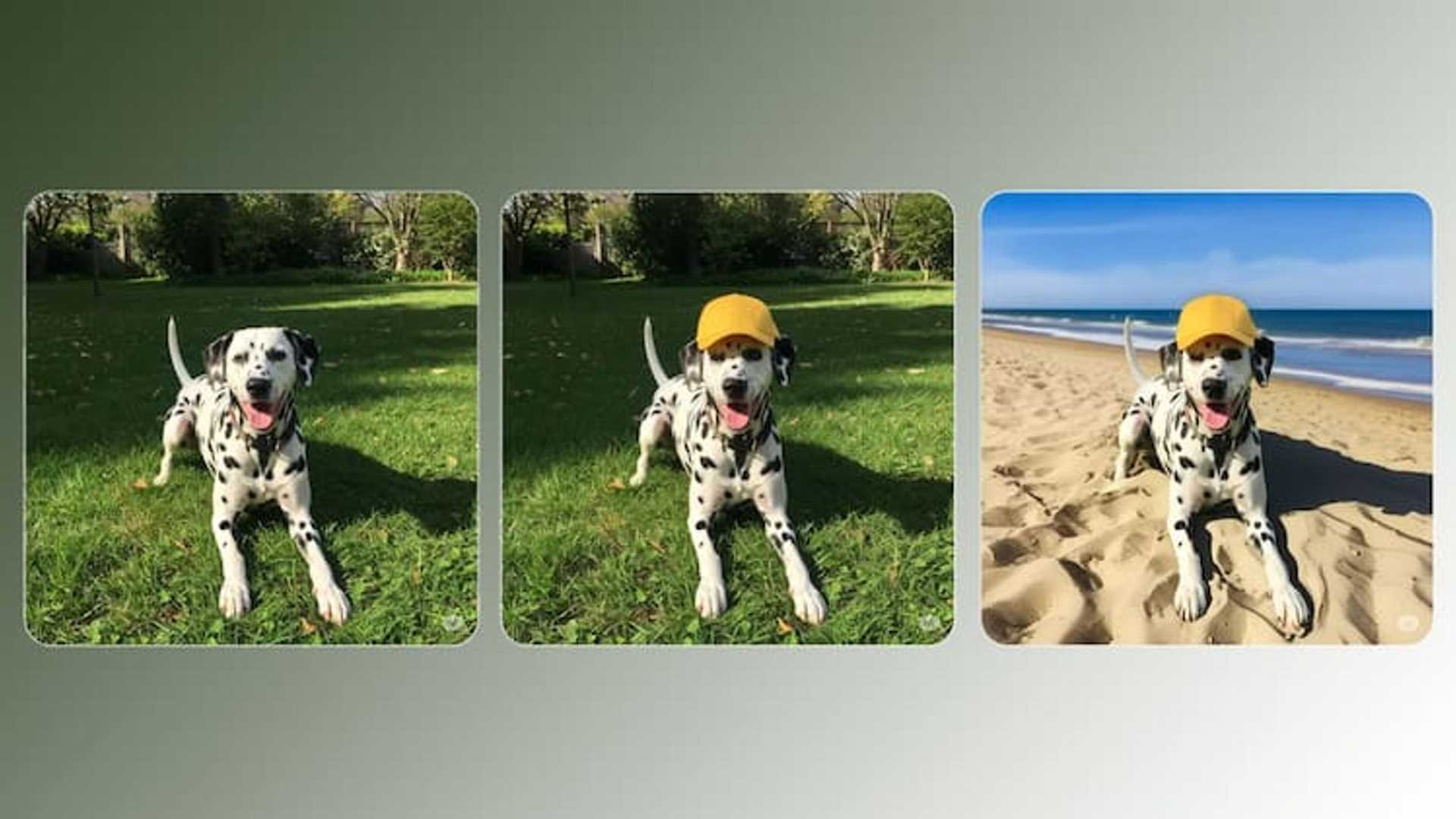
How to disable Gemini AI Search in Google Photos
Don’t want AI to meddle with your photo library? Learn how to turn off Gemini AI search in Google Photos. The rollout of ‘Ask Photos’, Google’s AI search tool for its Photos app, began in September 2024. However, it was swiftly paused because early adopters were experiencing latency issues. Google has finally re-launched the tool, fixing the speed issues and allowing users to enter simple and complex queries. If you’re not a fan of AI, there’s also an option to turn this feature off. Here’s how you can disable Gemini AI Search in Google Photos.
Google Photos AI Search Tool
Google has combined the Gemini-driven Ask Photos feature with the traditional search tool in the Photos app. Typically, when you perform a simple search on the app, it returns results almost instantly. You can type in a person’s name, and the app will showcase pictures that feature them. Similarly, you can search for pictures of the sky, and the relevant images will fill your screen.
Step 1: Launch the Google Photos app on your phone.
Step 2: Tap your profile picture in the top right corner of the screen.
Step 3: Go to Photos settings.
Step 4: Tap on Preferences.
Step 5: Select Gemini features in Photos.
The Gemini-powered Ask Photos search kicks in when you enter more complex queries. For example, you ask the Photos app to recommend pictures in your library that will make good lock screen wallpapers. Gemini will take a few seconds to analyze your request and then return with a relevant series of images. While you can’t turn off the regular search tool, the AI aspect of it can be disabled.
Step 6: Turn off the toggle switch next to Search with Ask Photo.
Step 7: To disable Gemini entirely, turn off the toggle switch next to Use Gemini in Photos.
To disable Gemini entirely in Google Photos, launch the Photos app, tap your profile picture, go to Photos settings>Preferences>Gemini features in Photos, and turn off the toggle switch next to ‘Use Gemini in Photos’.
The Gemini-powered AI Search feature is currently only available to eligible users in the US. It will be rolled out to more users worldwide in a phased manner.

Open the image in Google Photos, go to Edit>Adjust, and tap on ‘Ultra HDR’. Use the slider to adjust the strength of the effect.
The Magic Eraser tool is integrated into the image editor in the Google Photos app. To access it, open an image in the Photos app, go to Tools, and select Magic Eraser.
This is how you can disable Gemini AI Search in Google Photos. While you’re here, check out how you analyze videos using Gemini on your smartphone. If you have any questions, let us know in the comments!