3 Ways to Turn Off Gemini and Enable Google Assistant on Android
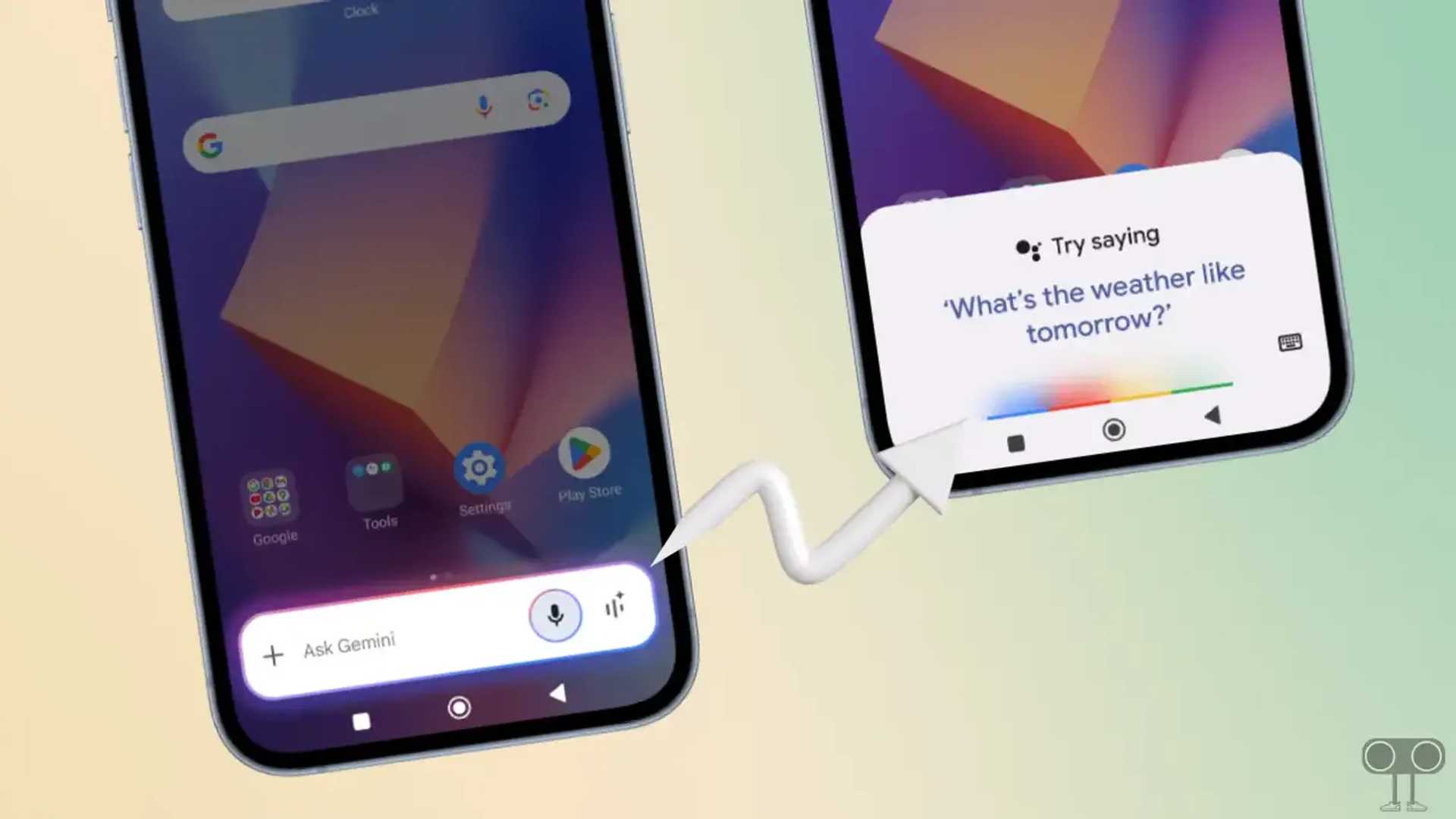
Now Google’s Gemini AI is the default digital assistant on Android phones and tablets. Before Gemini AI, Google Assistant was the primary digital assistant. By default, all new Android smartphones come with Gemini AI. However, if you have an older Android phone and install the Gemini app, it will automatically try to set itself as your default voice assistant.
If Gemini is set as the default digital assistant on your phone, but you now want to switch back to Google Assistant, it is possible. Below are three different methods to disable Google Gemini on Android phones, including Samsung, Xiaomi, Redmi, POCO, Realme, Oppo, and Vivo.

Switching from Gemini to Google Assistant
If you have the Gemini application installed on your phone, you can easily switch your default digital assistant from Gemini to Google Assistant. Follow the steps below to do so:
To disable Gemini and enable Google assistant on your Android phone:
In all Android smartphones, the Google app comes pre-installed, and with the help of Google settings, you can deactivate Gemini and activate Google Assistant. Ensure you update your Google app from the Play Store before proceeding.
Steps to switch back to Google Assistant from Gemini on Android:
- Step 1: Open the Google App on Your Phone and Tap on the Profile Icon at the Top Right Corner.
- Step 2: Tap on Settings.
- Step 3: Tap on Google Assistant.
- Step 4: Tap on Digital Assistant from Google.
- Step 5: Now, Select Google Google Assistant Option.
- Step 6: Tap on Switch to Confirm.
Google’s conversational AI “Gemini” offers more advanced features than the previous Google Assistant. However, if you prefer Google Assistant, you can switch between the two in the default app settings.
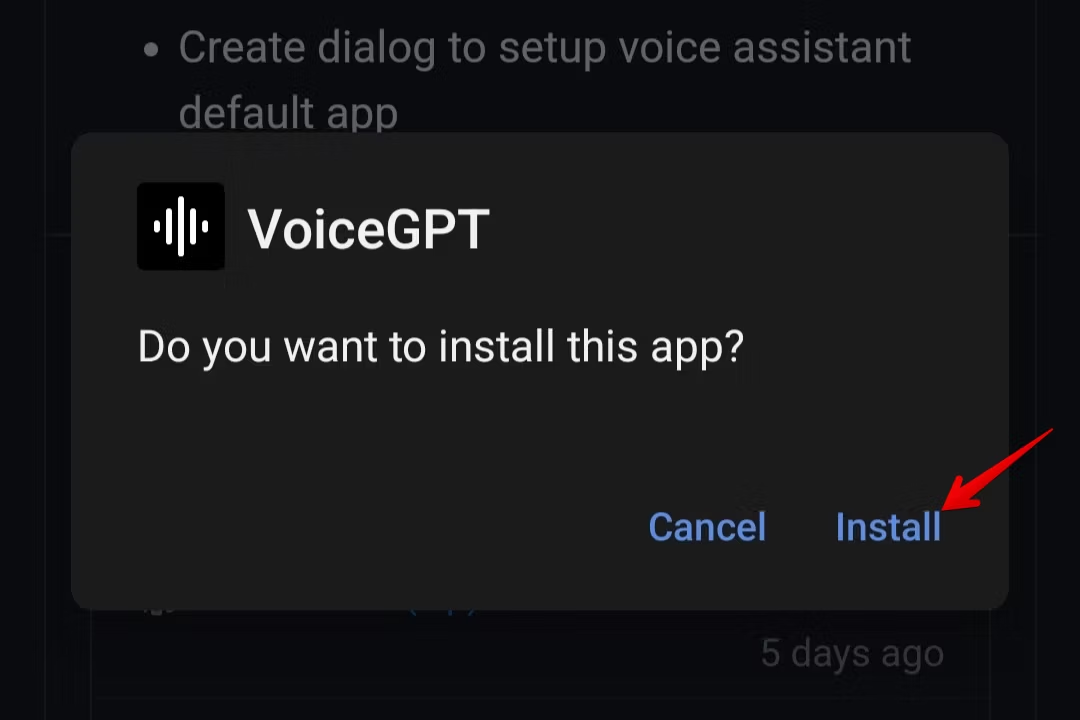
Changing Default Assistant
To change the default assistant from Gemini to Google Assistant through the settings app:
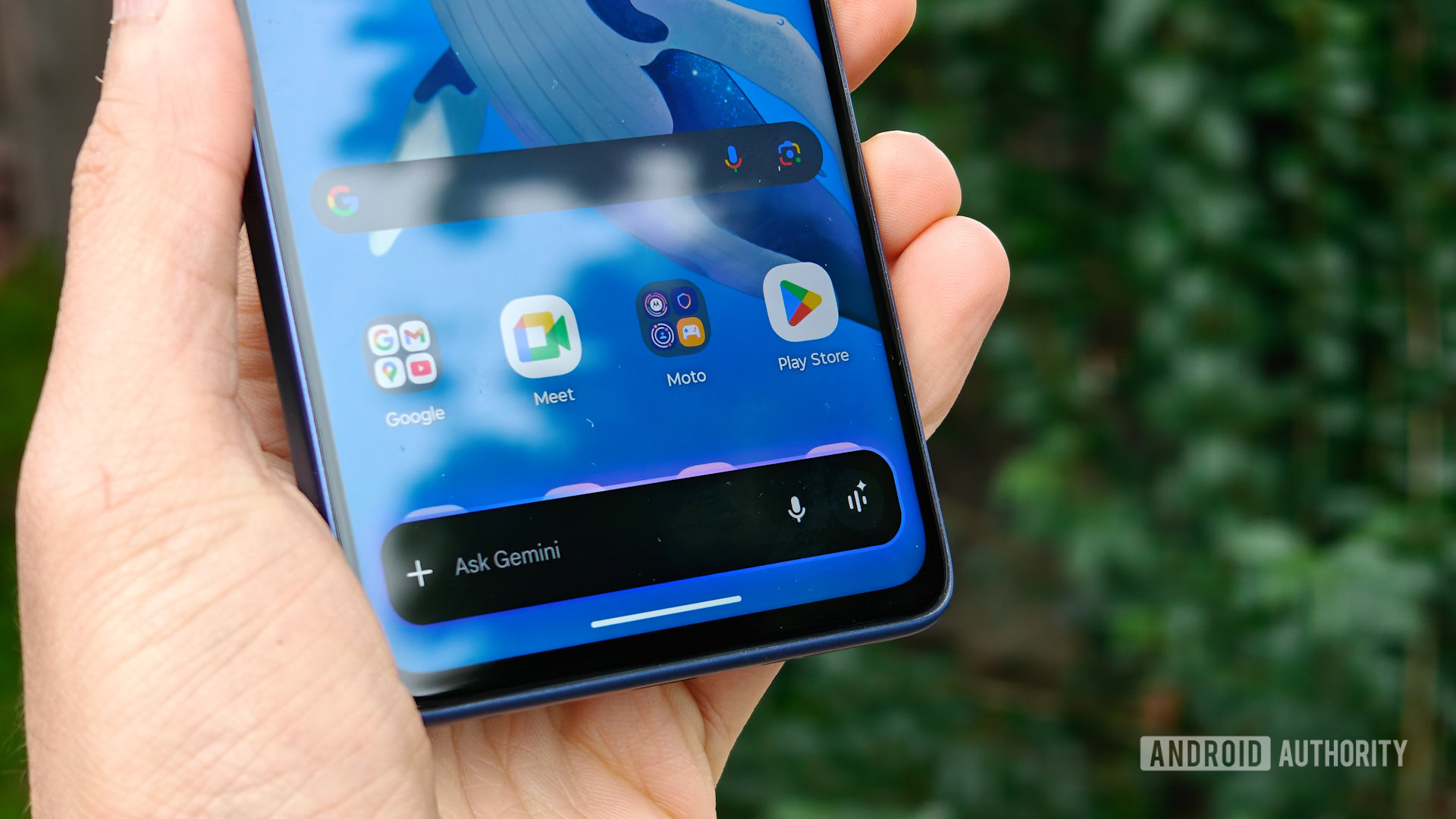
If you want to turn off the Gemini AI assistant on your Android phone instead of switching between Gemini and Google Assistant, it is also possible. When turned off, the digital assistant on your device will no longer respond until you enable it again.
That’s it! You now know how to turn off Gemini and enable Google Assistant on Android.
If you have any questions or encounter any issues related to Android, feel free to ask by commenting below.