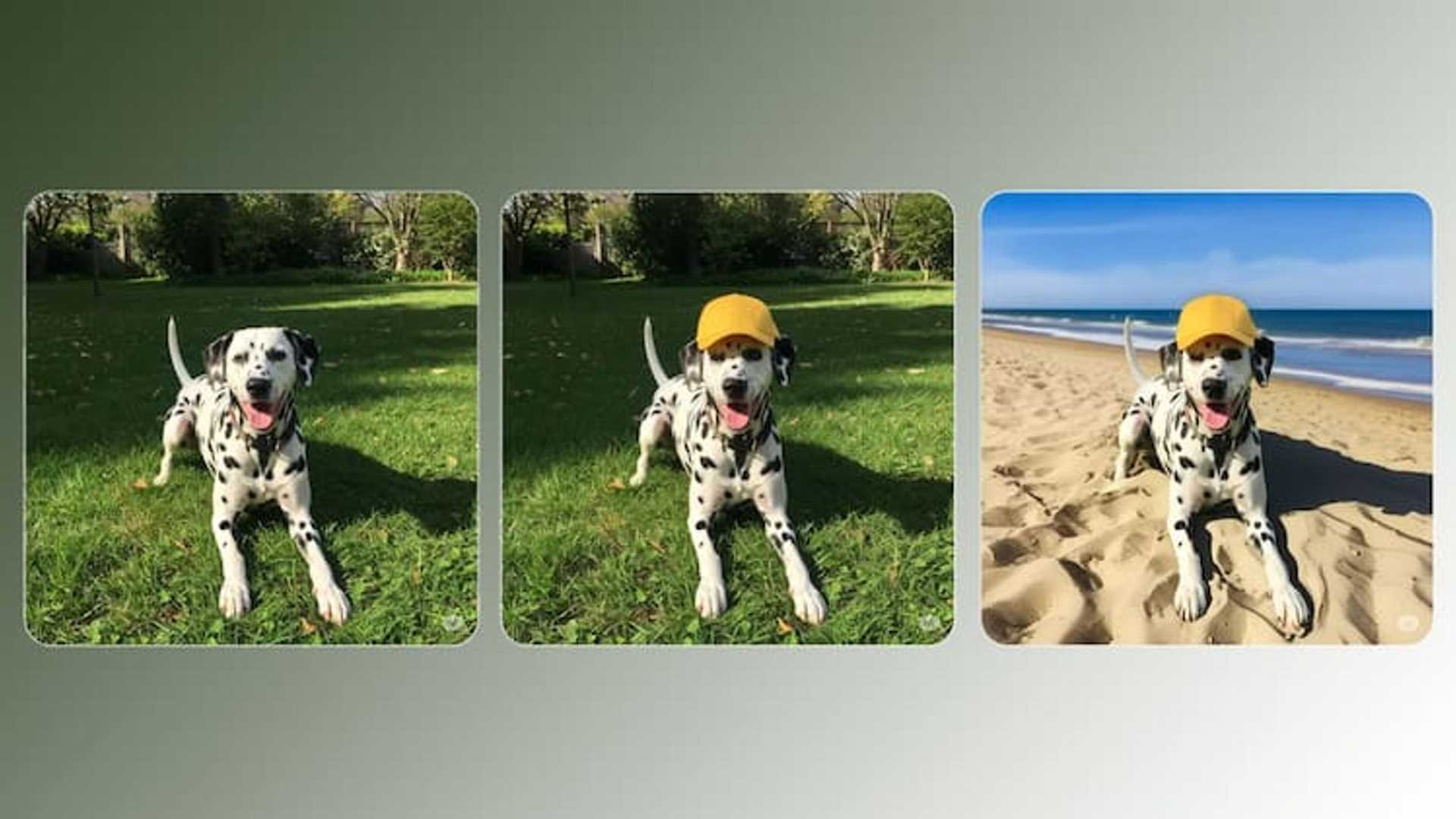
You can now generate AI images in Google Docs with Gemini ...
Creating visuals to support your documents just got easier with Google Docs' new feature powered by Gemini, Google’s AI image generation tool. This feature allows users to generate AI images directly inside their documents, eliminating the need to switch between different apps or websites to create custom images for reports, presentations, resumes, and marketing content.
Google Docs has seamlessly integrated Gemini to enhance user experience, enabling them to focus on their work without any interruptions. The Gemini AI can transform text descriptions into four distinct images, providing users with multiple options to choose from based on their needs. This integration showcases Google’s commitment to enhancing content creation and design tools in one convenient platform.
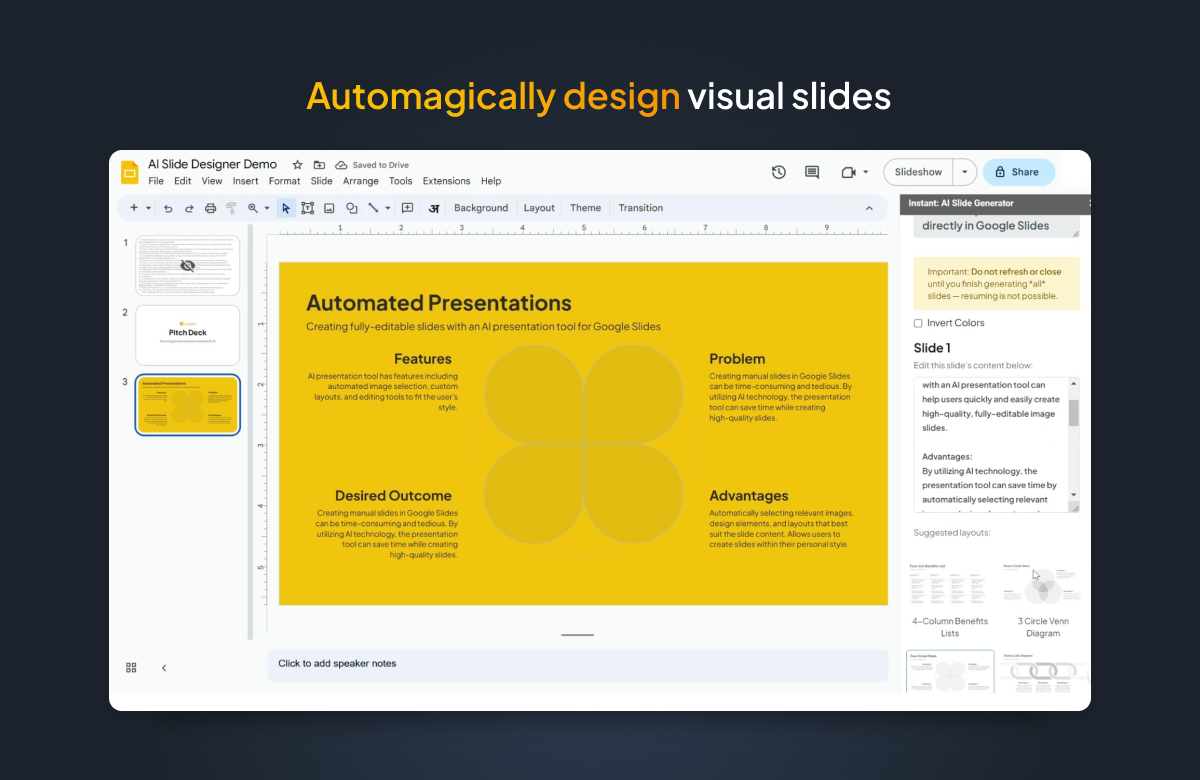
How to generate AI images in Google Docs using Gemini:
To try out this new feature, follow these simple steps:
- Open your Google Doc, whether it's a new file or an existing one.
- Place your cursor where you want to insert an image.
- From the top menu, click on Insert, then hover over Image, and select Generate image from the dropdown menu.
- This action will open the Gemini image generation panel on the side of your document.
- In the prompt box that appears, provide a detailed description of the image you wish to generate, including specifics such as subject, colours, lighting, and style.
For example, instead of a generic term like “beach,” try describing it as “a sunny tropical beach with palm trees and turquoise water at sunset” for more accurate results.

Customizing your AI-generated images:
Before generating images, you can select different artistic styles by choosing from options like watercolour, photorealistic, or cartoon. Additionally, you can select the image format - square, wide (landscape), or tall (portrait) based on your document's layout.
After providing the necessary details, click on Create to start generating images. Gemini will present you with four variations based on your description. Review these options carefully, and if needed, click on View more to explore additional variations.
Inserting and editing AI-generated images:
Once you find a suitable image, click on it to insert it into your Google Doc at the cursor’s position. You can then resize or move the image to align with your document’s layout.
In conclusion, this new feature simplifies the process of adding personalized visuals to your work directly within Google Docs. By streamlining the image generation process, Google aims to boost user creativity and productivity while maintaining a seamless workflow.