iPhone tricks: Print to PDF is easy - here's how to do it
I’ve been printing a lot lately, but only to PDF, as I use this format type to feed information to ChatGPT. This is a trick I use to give ChatGPT access to websites that might block AI chatbots. There are different ways to share that content, which I’ve addressed, but PDF is my favorite.
While writing that tutorial, I realized I was doing all my Print-to-PDF stuff from my MacBook, which is my weapon of choice for all things related to work and productivity. I use ChatGPT most often on my Mac, so that’s where I end up sending the PDFs. In the process, I learned that a brilliant iPhone (and iPad) feature is built into Apple’s operating system that lets you print anything to PDF with incredible ease. But it’s hidden from view, and I can’t figure out why. I say this as a longtime iPhone user who hasn’t previously used the Print-to-PDF feature on the phone or on an iPad.
Discovering the Print to PDF Feature on iPhone
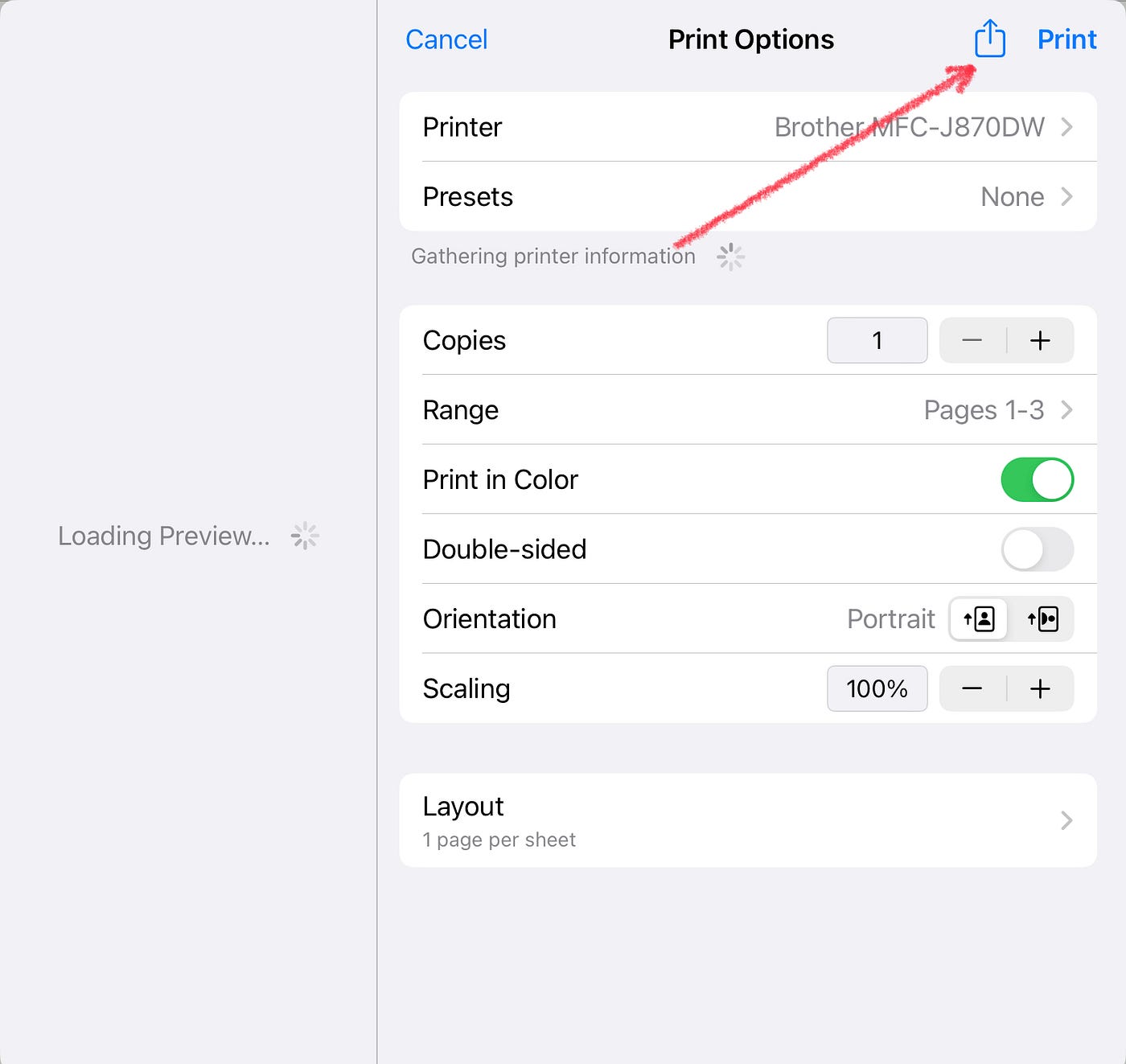
It’s built into the Share feature, available anywhere in iOS and iPadOS that you might want to share files, but it’s not immediately obvious. Unlike the regular Print option in the Share menu, there’s no direct Print to PDF option.
To demonstrate this feature, I’ll print the ChatGPT article I wrote the other day to PDF. I loaded the page in Safari, tapped the Share button, and then the magic began. There are several ways to print to PDF from here.
To print to PDF on your iPhone or iPad:
- Tap on the Options button while sharing the file.
- Select PDF from the list of options.
- You can then share the PDF with your computer, iPad, or other devices.
However, the Share option doesn’t allow you to share the PDF with certain apps like the default Files app or ChatGPT.
Another Method to Print to PDF on iPhone
On the iPhone, the Print to PDF option is cleverly hidden. Simply tap the Share button, and you’ll discover that the iPhone or iPad has already created the PDF file you need. From there, you can easily share the web page as a PDF or save it to the Files app.
If you want to preview the document before saving it, you can pinch-to-zoom on the print preview at the bottom of the page to view the full-screen version, which is actually the PDF file.
This method, while slightly longer, allows you to preview the document before saving it, providing an additional step in the process.
Effortless PDF Printing on iPhone
My now-favorite way to print stuff to PDF on the iPhone and iPad is to tap the file name and then select Save to save the document directly to the Files app without using the Share sheet.
Despite the slight complexity of the process, this method works effectively, making printing to PDF on iPhone and iPad a seamless experience.
Why Apple makes this process slightly tedious is unclear, but the end result is a convenient way to create PDF files on iOS devices.
Sign up for the most interesting tech & entertainment news out there.